How to Read a Diff: The Unified Diff Format Explained
Understand every line of a unified diff: file headers, @@ hunk headers, context lines and + and - changes, plus git diff extras, patches and code reviews.
 By Avinash KoriPublished 5 min read
On this page
Every code review, every git diff, every patch attached to a bug report uses the same format: the unified diff. Most developers read diffs daily by recognising red and green lines, but the format carries more information than colours: exact line numbers, how much context surrounds each change, and enough structure for tools to apply the change to another copy of the file.
Knowing how to read it fully makes you faster at reviews, better at resolving merge conflicts, and able to apply or create patches without a hosting platform.
A complete example
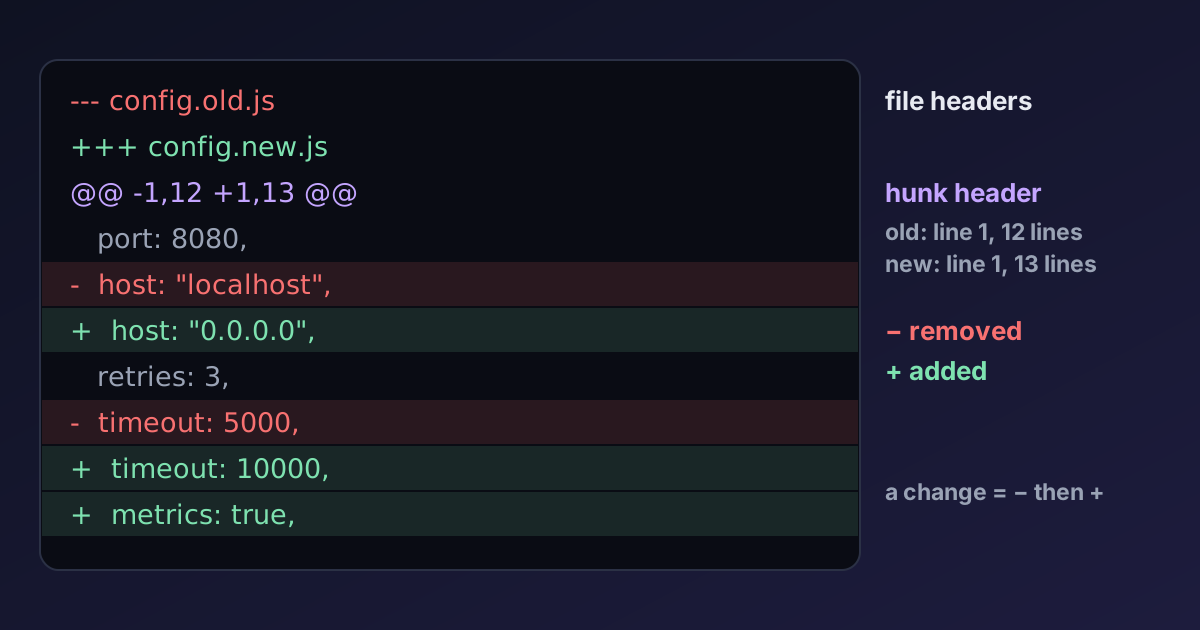
Here's a small JavaScript config file before and after a change, compared with diff -u:
--- config.old.js	2026-10-15 17:33:24 +0530
+++ config.new.js	2026-10-15 17:33:24 +0530
@@ -1,12 +1,13 @@
 const config = {
   port: 8080,
-  host: "localhost",
+  host: "0.0.0.0",
   retries: 3,
-  timeout: 5000,
+  timeout: 10000,
   logLevel: "info",
   cache: true,
   region: "eu-west-1",
-  features: ["search"],
+  features: ["search", "export"],
+  metrics: true,
 };

 export default config;
You can produce the same output by pasting both versions into the Text & Code Diff, switching to the unified view, and downloading the .diff file. Let's go through it line by line.
The file headers: --- and +++
--- config.old.js	2026-10-15 17:33:24 +0530
+++ config.new.js	2026-10-15 17:33:24 +0530
The line starting with --- names the original file, and +++ the new one, optionally followed by modification times. Everything below is described as changes from the first to the second. In Git output these are a/ and b/ paths: --- a/src/config.js and +++ b/src/config.js. For a newly created file the original is /dev/null, and for a deleted file the new one is.
The hunk header: @@ -1,12 +1,13 @@
A diff is split into hunks, one per region of change. Each starts with a header:
@@ -1,12 +1,13 @@
     ^  ^   ^  ^
     |  |   |  number of lines in the new file's version of this hunk
     |  |   start line in the new file
     |  number of lines in the old file's version of this hunk
     start line in the old file
So -1,12 +1,13 means: this hunk covers 12 lines starting at line 1 of the old file, and 13 lines starting at line 1 of the new file. The new version is one line longer, which matches the one extra + line (metrics: true).
When the count is 1 it's often omitted: @@ -5 +5 @@. A count of 0 means the hunk only adds or only removes lines, with the start line pointing just before the change.
Git adds something useful after the second @@: the nearest preceding function or class name, such as @@ -40,7 +40,9 @@ function connect(options) {. That tells you where the change is without scrolling.
The body: space, minus and plus
Each line in the hunk starts with one character:
- A space: a context line, unchanged, shown to help you (and tools) locate the change.
-: a line that exists only in the old file (removed).+: a line that exists only in the new file (added).
There is no "modified" marker. A changed line is shown as a removal followed by an addition, as with host, timeout and features above. Visual diff tools pair those lines up and highlight the changed words inside them, which is why the Text & Code Diff marks "localhost" and "0.0.0.0" specifically instead of the whole line.
Context lines and hunk splitting
By default, diff -u and git diff show 3 lines of context around each change. When two changes are closer than twice that distance, their context overlaps and they're merged into one hunk. That's why the example is a single hunk. With one line of context (diff -U1), the same comparison splits into two hunks:
@@ -2,5 +2,5 @@
   port: 8080,
-  host: "localhost",
+  host: "0.0.0.0",
   retries: 3,
-  timeout: 5000,
+  timeout: 10000,
   logLevel: "info",
@@ -8,3 +8,4 @@
   region: "eu-west-1",
-  features: ["search"],
+  features: ["search", "export"],
+  metrics: true,
 };
More context makes a change easier to understand in review (git diff -U10, or git diff --function-context to show the whole function). Less context makes patches more likely to apply to a file that has changed elsewhere.
Special lines you'll meet
\ No newline at end of file means the last line of the file (old or new, depending on where it appears) has no trailing newline. If you see it flip between versions, an editor added or removed the final newline. Configure editors to always end files with one; it avoids noisy diffs.
Whitespace-only changes look like identical - and + lines. They usually come from trailing spaces, tabs versus spaces, or Windows \r\n line endings. git diff -w (or the diff checker's ignore whitespace option) hides them so you can see real changes. A team-wide formatter prevents them in the first place; see our guide to code formatting with Prettier.
Git's extended headers appear before the --- line:
diff --git a/src/old-name.js b/src/new-name.js
similarity index 92%
rename from src/old-name.js
rename to src/new-name.js
index 3f2a1b9..8c4d2e7 100644
These record renames, copies, file mode changes (100644 is a normal file, 100755 executable) and the blob hashes of the two versions.
Diffs as patches
A unified diff isn't only for reading. It's a patch: tools can apply it to another copy of the original file.
# Create a patch
diff -u config.old.js config.new.js > config.patch
git diff > my-change.patch

# Apply it
patch config.js < config.patch
git apply my-change.patch
git apply --check my-change.patch   # test whether it would apply cleanly
The context lines are what make this robust. If lines were added above the change since the patch was made, patch finds the context a few lines away and applies the hunk there (reporting an "offset"). If the context no longer matches at all, the hunk is rejected and you resolve it by hand. git format-patch and git am do the same with commit messages and authorship included, which is how the Linux kernel still accepts contributions by email.
Reading diffs in code review
A few habits make reviews faster and more accurate:
- Read the hunk header first. The line numbers and Git's function context tell you where you are before you read any code.
- Read removals and additions as pairs. For each
-/+pair, ask what exactly changed; word-level highlighting helps. - Expand context when it matters. A three-line window can hide that a changed condition is inside a loop or an error handler.
- Look for what's missing. Diffs show what changed, not what should have changed. A renamed function with no updated tests is visible only if you look for the tests.
- Separate formatting from logic. If a pull request reformats a file and changes behaviour, ask for two commits. Mixed diffs are where bugs hide.
When a line diff isn't the right tool
Line diffs are perfect for code and prose. For structured data they can be misleading: reordering keys in a JSON file changes many lines without changing any data, and minified files are a single line. For JSON, use a semantic comparison like the JSON Diff, which ignores key order and formatting. Our guide to comparing JSON files explains why.
Summary
A unified diff has file headers (--- original, +++ new), hunks introduced by @@ -start,count +start,count @@, and body lines marked with a space (context), - (removed) or + (added). Modified lines appear as a removal plus an addition. Context lines keep changes readable and let tools apply diffs as patches with patch or git apply. Read the hunk header first, read changes in pairs, and expand context whenever the change depends on what surrounds it.

Written by
Avinash Kori
Founder of Devtoolry
Avinash builds Devtoolry, a set of free developer tools that run entirely in the browser, and writes practical guides on the formats, encodings and techniques behind them.
Try it yourself
The free tools used in this article. They run in your browser, so nothing you paste is uploaded.
Text & Code Diff
Compare two texts or code files online side by side. Additions, deletions and modified lines are highlighted with inline word changes. Runs in your browser.
JSON Diff
Compare two JSON documents online, ignoring key order and formatting. Keys are normalised and sorted, so only real changes in values are highlighted.