Why Code Formatting Matters: Setting Up Prettier for Your Team
Why consistent formatting speeds up reviews, how Prettier works, and a team setup: config, format on save, CI, ESLint and reformatting a codebase safely.
 By Avinash KoriPublished 5 min read
On this page
Every team that doesn't use an automatic formatter has the same conversations: tabs or spaces, where the brace goes, single or double quotes, whether that line is too long. They happen in code review, where they waste the reviewer's attention, and in diffs, where an editor's auto-indent reformats lines nobody meant to change.
An automatic formatter ends those conversations permanently. This guide explains why that matters, how Prettier decides what code should look like, and how to set it up so formatting is never discussed again.
What formatting costs a team
Formatting has no effect on what code does, but it has real costs when it's inconsistent:
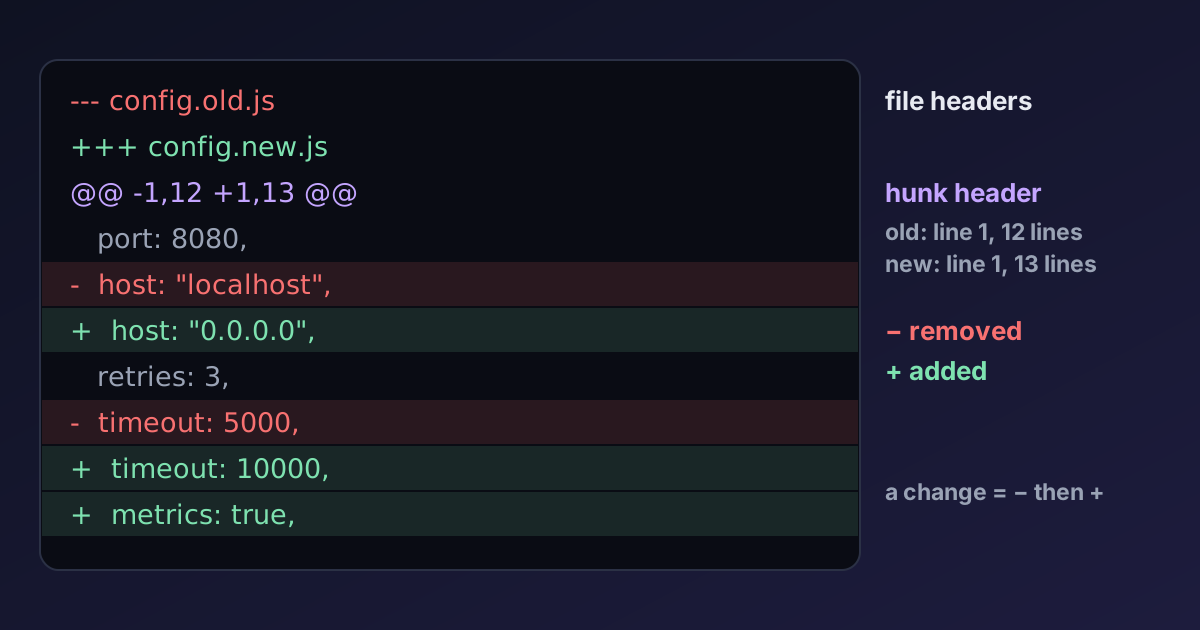
- Noisy diffs. A pull request that fixes one line but reindents forty hides the real change. Our guide on reading diffs shows how much harder review gets when formatting and logic are mixed.
- Review attention. Every comment about spacing is a comment not spent on a missing null check.
- Merge conflicts. Two people reformatting the same file differently conflict on lines whose content didn't change.
- Reading speed. Code that always looks the same is faster to scan, because your eyes learn where things are.
The value of a formatter isn't that its style is the best. It's that the style is automatic and the same everywhere, so nobody thinks about it.
How Prettier works
Most older tools (and linters' style rules) look at your code's existing layout and complain about parts of it. Prettier takes a different approach: it parses your code into a syntax tree, throws away the original formatting, and prints the tree again from scratch using its own rules. Two files that mean the same thing come out identical, however they were written.
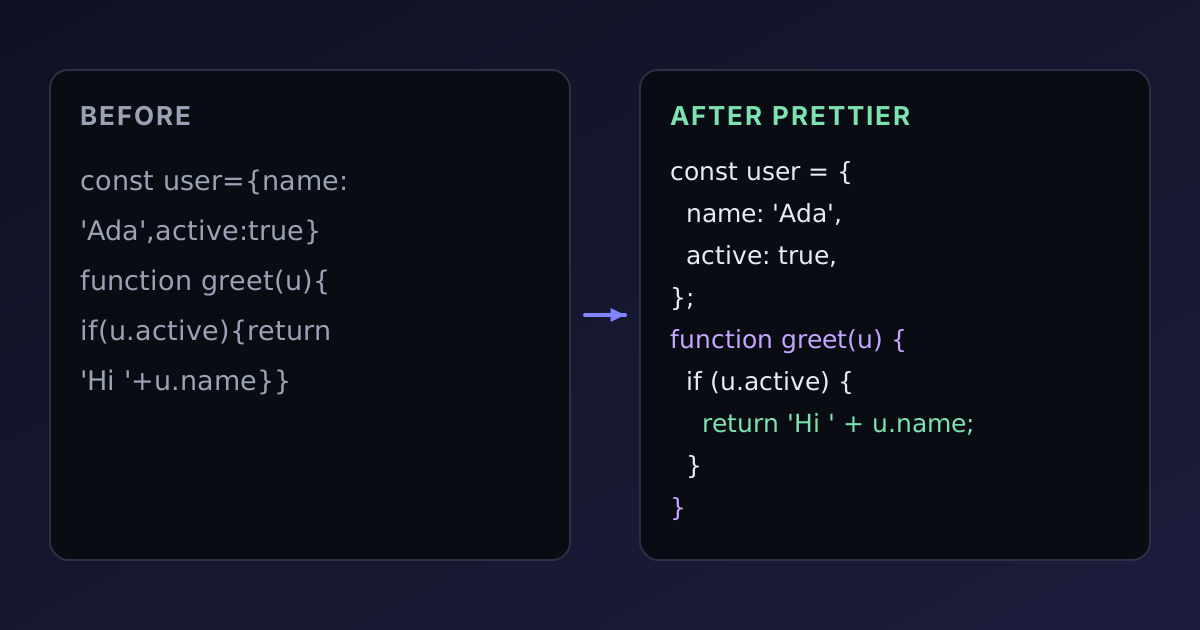
Here's messy input:
const user={name:'Ada',roles:['admin','ops'],active:true}
function greet(u){if(u.active){return "Hello, "+u.name}else return null}
const result = someFunction(argumentNumberOne, argumentNumberTwo, argumentNumberThree)
And Prettier's output with default settings:
const user = { name: "Ada", roles: ["admin", "ops"], active: true };
function greet(u) {
  if (u.active) {
    return "Hello, " + u.name;
  } else return null;
}
const result = someFunction(
  argumentNumberOne,
  argumentNumberTwo,
  argumentNumberThree,
);
Notice the last statement. It's 87 characters long, over the default printWidth of 80, so Prettier breaks the arguments onto separate lines and adds a trailing comma (the default since Prettier 3). With printWidth: 100 it would stay on one line. Line width is the main decision Prettier makes for you, and the reason it can't be replaced by simple rules like "always break after a comma".
You can try this on your own code with the JavaScript Formatter, which runs Prettier in the browser, including options for quotes, semicolons and line width. The same engine powers the TypeScript, CSS and HTML formatters.
Step 1: install and configure
Install Prettier as a development dependency, pinned to an exact version so everyone formats the same way:
npm install --save-dev --save-exact prettierAdd a .prettierrc.json at the root of the repository. Prettier deliberately has few options; most teams change two or three:
{
  "singleQuote": true,
  "printWidth": 100
}
Everything else can stay at the defaults (2-space indentation, semicolons, trailing commas). The less you configure, the less there is to discuss.
Add a .prettierignore for generated files, which shouldn't be reformatted:
dist
coverage
*.min.js
package-lock.json
Then add two scripts to package.json:
{
  "scripts": {
    "format": "prettier . --write",
    "format:check": "prettier . --check"
  }
}
Step 2: format on save
Formatting should happen without anyone thinking about it. In VS Code, install the Prettier extension and add this to the project's .vscode/settings.json, so it's shared with the team:
{
  "editor.defaultFormatter": "esbenp.prettier-vscode",
  "editor.formatOnSave": true
}
JetBrains IDEs, Neovim and most other editors have equivalent integrations. Because the extension uses the project's own Prettier version and config, everyone gets identical output.
Also add an .editorconfig file. It's read by almost every editor, including ones without Prettier support, and settles basics like line endings and the final newline:
root = true

[*]
indent_style = space
indent_size = 2
end_of_line = lf
insert_final_newline = true
Step 3: enforce it in CI
Format-on-save covers most cases, but not everyone uses the same editor, and some changes come from scripts or the GitHub web editor. Add the check to your CI pipeline:
- name: Check formatting
  run: npx prettier . --check
--check lists unformatted files and fails the build without changing anything. Optionally, run Prettier on staged files before each commit with lint-staged and a Git hook, so problems are fixed before they reach CI at all.
Step 4: make ESLint and Prettier cooperate
ESLint finds bugs; Prettier formats. They overlap only where ESLint has stylistic rules (indentation, quotes, spacing), and when both try to control the same thing they fight. The standard fix is to turn off ESLint's formatting rules with eslint-config-prettier:
// eslint.config.js
import js from '@eslint/js';
import prettier from 'eslint-config-prettier';

export default [js.configs.recommended, prettier];
Put it last, so it overrides earlier configs. Run Prettier as a separate step rather than through an ESLint plugin; it's faster and the error messages are clearer.
Step 5: reformat the existing code once
If you're adding Prettier to an existing project, format everything in a single commit with no other changes:
npx prettier . --write
git commit -am "Format codebase with Prettier"
That commit will touch most files, which would normally ruin git blame: every line would show the formatting commit as its last change. Git can skip it. Add the commit's hash to a .git-blame-ignore-revs file in the repository:
# Format codebase with Prettier
3f2a1b9c4d5e6f708192a3b4c5d6e7f8091a2b3c
Then git blame --ignore-revs-file .git-blame-ignore-revs (or git config blame.ignoreRevsFile .git-blame-ignore-revs once) shows the real authors again. GitHub's blame view reads this file automatically.
Merge or rebase open pull requests right after the formatting commit, or ask their authors to run the formatter on their branch, to avoid painful conflicts.
What Prettier doesn't do
Prettier only changes layout. It won't rename variables, remove unused imports, reorder code or find bugs. That's the job of ESLint, the TypeScript compiler (see TypeScript strict mode) and your tests. It also leaves some decisions to you on purpose: blank lines between statements are preserved (collapsed to at most one), and object literals that you write across multiple lines stay multi-line if the first property is on its own line.
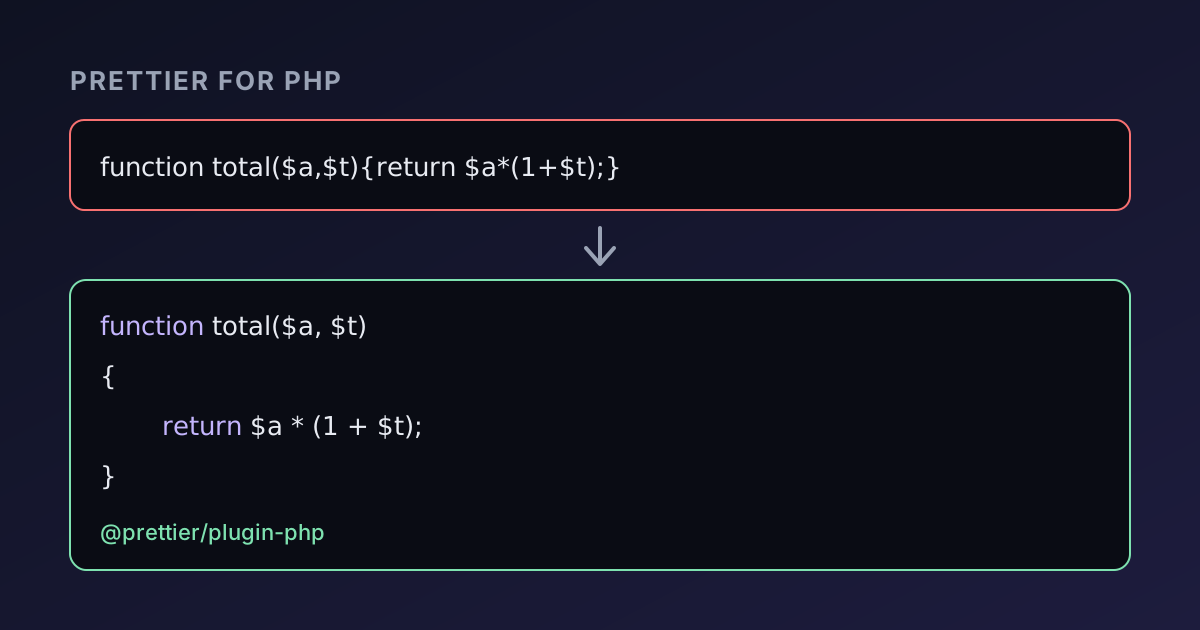
For other languages, use their standard tools in the same spirit: gofmt for Go, rustfmt for Rust, Black or Ruff for Python, and php-cs-fixer or Prettier's PHP plugin (which the PHP Formatter uses; see Prettier for PHP) for PHP. SQL deserves its own conventions too, covered in SQL formatting best practices.
Summary
Consistent formatting keeps diffs small, reviews focused and code easy to scan, and only an automatic formatter makes it truly consistent. Prettier reprints code from its syntax tree, mainly deciding where to break lines based on printWidth. Pin its version, keep the config minimal, format on save, check in CI, disable ESLint's style rules with eslint-config-prettier, and reformat existing code in one commit listed in .git-blame-ignore-revs.

Written by
Avinash Kori
Founder of Devtoolry
Avinash builds Devtoolry, a set of free developer tools that run entirely in the browser, and writes practical guides on the formats, encodings and techniques behind them.
Try it yourself
The free tools used in this article. They run in your browser, so nothing you paste is uploaded.
JavaScript Formatter
Format and beautify JavaScript and JSX online with Prettier. Choose indentation, quotes, semicolons and line width; your code is formatted in your browser.
TypeScript Formatter
Format and beautify TypeScript and TSX online with Prettier, including types, generics and decorators. Choose indentation, quotes and semicolons.
CSS Formatter
Format and beautify CSS, SCSS and Less online with Prettier. Turn minified or messy stylesheets into readable, consistently indented code in your browser.
HTML Formatter
Format and beautify messy or minified HTML into clean, indented markup with Prettier, including embedded CSS and JavaScript. Runs locally in your browser.