How to Combine Photos into One PDF (and Keep It Under 200 KB)
Turn several JPG or PNG photos into one PDF online, in the right order, then shrink it under 200 KB for an upload form. Real file sizes from a three-photo test.
 By Avinash KoriPublished 4 min read
On this page
To combine photos into one PDF, open a JPG to PDF converter, choose all the photos at once, put them in the order you want, and create the PDF. Each photo becomes one page. If the PDF is too large for an upload form, run it through a PDF compressor with a target size such as 200 KB.
This is the everyday job behind "upload your documents as a single PDF": an ID card photographed front and back, a few pages of a certificate, or receipts for an expense claim. Here's how it works with real file sizes from a test with three phone photos.
Step 1: Put the photos into one PDF
Open JPG & PNG to PDF and choose your photos. You can select several at once, and add more later with Add more images. JPG, PNG, WebP, GIF, BMP and AVIF images are accepted.
Then set up the pages:
- Order. The photos appear in a list. Use the up and down arrows next to each one to move it; the list order is the page order. Put the front of an ID card before the back.
- Page size. A4 is the default and what most forms in India, the UK and Europe expect; choose US Letter for the United States. Same as image makes each page exactly the size of its photo, which suits screenshots.
- Orientation. Auto turns each page to match its photo, so a landscape photo of a certificate gets a landscape page. Choose Portrait if the form wants every page upright.
- Margin. Small is the default and keeps a thin white border; None fills the page.
- Output file name. Type a name the reviewer will recognise, such as
aadhaar-front-back, instead of the defaultimages.
Press Create PDF and then Download. The photos never leave your device: the PDF is built in your browser.
Step 2: Check the size
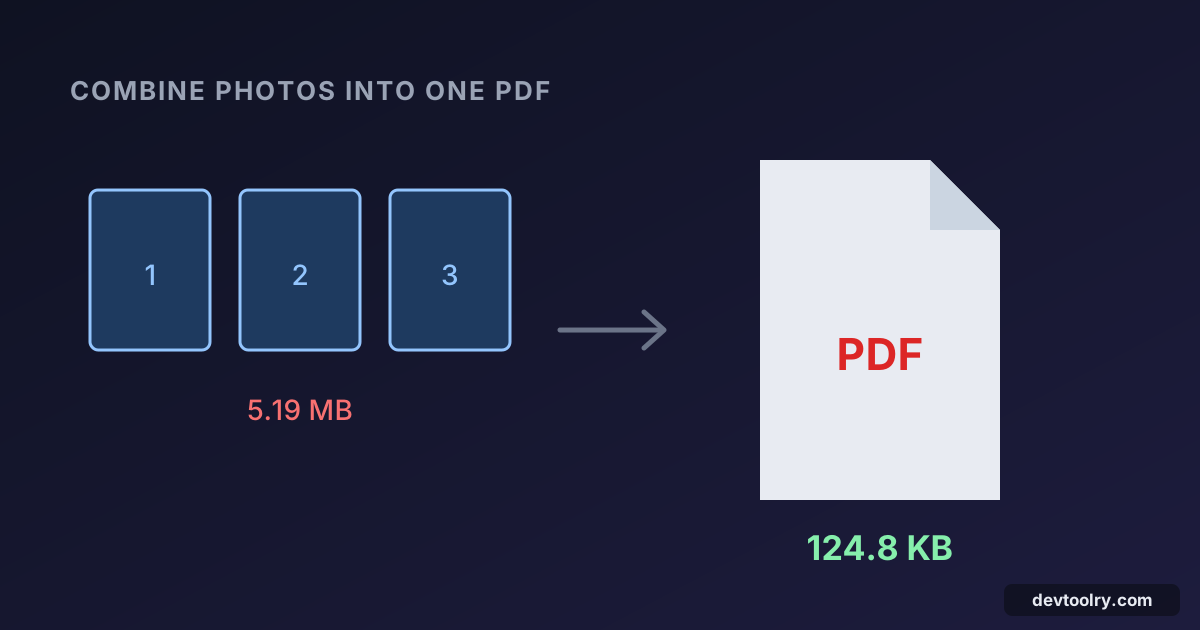
We combined three phone photos: 1.37 MB, 931 KB and 2.91 MB, about 5.2 MB in total. The PDF came out at 5.19 MB.
That's no accident. The converter puts each JPEG into the PDF exactly as it is, without re-compressing it, so you lose no quality, and the PDF is roughly as big as the photos added together. Five megabytes is fine for email, but most upload forms set a much lower limit.
Step 3: Compress the PDF to the form's limit
Open Compress PDF, choose the PDF, switch Compress by to Target size, and enter the limit. With our 5.19 MB file and a 200 KB target, the result was 124.8 KB, 98% smaller.
The compressor first re-compresses the images inside the PDF, which keeps any text selectable; if that isn't enough to reach the target, it redraws the pages as images. A PDF made from photos has no text layer to keep, so either way the result is three smaller images on three pages. Open it and zoom in on the smallest print before you upload: if it's hard to read, use a higher target.
If the form gives a range, aim for the upper limit: a larger file keeps more detail, which matters for small print on certificates and ID cards. Compressing a PDF without losing quality goes into the compression levels in more detail.
Alternative: compress the photos first
If you want control over each page, compress the photos before making the PDF. Run them through the Image Compressor with File size set to roughly the PDF limit divided by the number of pages (for three pages and a 200 KB limit, about 60 KB each), then combine them. Because the converter embeds JPEGs unchanged, the PDF ends up close to the sum of the compressed photos. This is also the way to go when one page, such as a photo of yourself, needs more detail than the others.
Already have some pages as PDFs?
Convert the photos to a PDF first, then join it with the other documents in Merge PDF. Merging copies pages without re-compressing them, so do the compression step last, on the merged file, if the total is still over the limit.
Doing it on a phone
You don't need an app. Open the converter in your phone's browser and tap Choose images: Android and iPhone both offer the photo gallery, and usually the camera too, so you can photograph each page straight into the list. The gallery picker lets you select several photos in one go. The PDF is saved to your Downloads folder (on Android) or the Files app (on iPhone), from where the upload form can pick it up.
Tips for photos of documents
- Shoot straight on, in daylight. Hold the phone parallel to the page and avoid the flash, which leaves a bright spot.
- Fill the frame. Crop away the table around the document with the Image Cropper. Less background means more detail on the page at the same file size.
- One document per photo. Two cards side by side in one photo end up small on a single page; separate photos give each its own page.
- Check the result. Open the PDF before uploading and make sure every page is upright and readable.
Summary
Choose all your photos in JPG to PDF, arrange them, and create the PDF; each photo becomes one page at its original quality. If the file is over the form's limit, compress it with a target size. In our test, three phone photos became a 5.19 MB PDF, and a 200 KB target brought it down to 124.8 KB. For individual photos with a size limit, see compressing an image to 20 KB, and for passport-style photos, passport photo size in pixels.

Written by
Avinash Kori
Founder of Devtoolry
Avinash is a full-stack web developer from Surat, India, with eight years of experience in PHP, Laravel and Angular. He built Devtoolry so developers can solve everyday problems quickly with free tools that run entirely in the browser, and writes practical guides on the formats, encodings and techniques behind them.
Try it yourself
The free tools used in this article. They run in your browser, so nothing you paste is uploaded.
JPG & PNG to PDF
Convert JPG, PNG and WebP images to one PDF online. Reorder pages, choose A4, Letter or image size, orientation and margins. Photos stay on your device.
Compress PDF
Compress PDF files online to a size limit like 100 KB, 200 KB or 500 KB for upload forms, or by level. Text stays sharp where possible. Nothing is uploaded.
Merge PDF
Merge PDF files online in the order you choose: drag to reorder, see page counts, and download one combined PDF. Files never leave your browser.
Image Compressor
Compress JPG, PNG and WebP images online to an exact size like 20 KB, 50 KB or 100 KB for upload forms, or by quality. Images never leave your browser.