Passport Photo Size in Pixels: 3.5 × 4.5 cm and 2 × 2 Inches
3.5 × 4.5 cm is 413 × 531 pixels at 300 DPI, and 2 × 2 inches is 600 × 600. How to convert any photo size to pixels, then resize and compress it online.
 By Avinash KoriPublished 4 min read
On this page
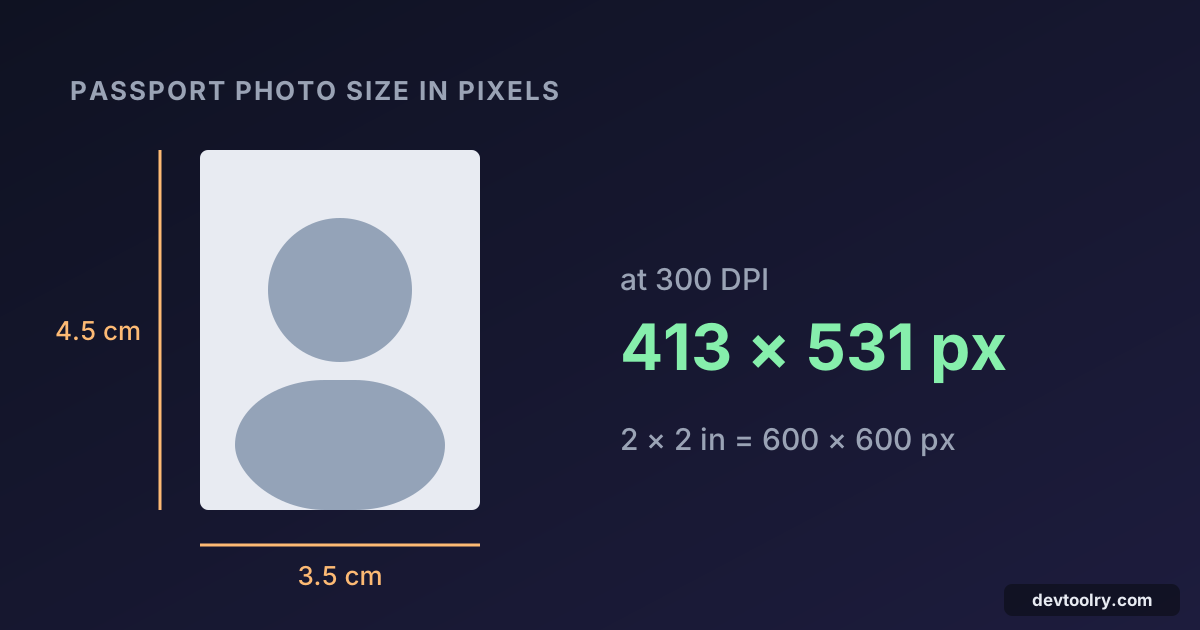
A 3.5 × 4.5 cm passport photo is 413 × 531 pixels at 300 DPI, the resolution photo labs print at. A 2 × 2 inch photo, the size used for US passports, is 600 × 600 pixels at 300 DPI. To make one from any photo, resize it to those exact pixels with the crop option on, then compress it if the form also sets a file size limit.
This guide gives the pixel sizes for the common photo formats, explains the simple formula behind them, and walks through resizing a real phone photo.
Passport photo sizes in pixels
| Photo size | Used for | 200 DPI | 300 DPI | 600 DPI |
|---|---|---|---|---|
| 3.5 × 4.5 cm (35 × 45 mm) | Passports and visas in India, the UK, the Schengen countries and many others | 276 × 354 | 413 × 531 | 827 × 1063 |
| 2 × 2 inches (51 × 51 mm) | US passports and visas | 400 × 400 | 600 × 600 | 1200 × 1200 |
Use the 300 DPI column unless the form says otherwise. It is the standard for printed photos, and it gives online forms enough detail without making the file large.
Every application has its own rules, though. If the form you're filling in gives dimensions in pixels, such as "200 × 230 pixels", use exactly those and ignore this table. Forms also often fix the background colour, the head size and a file size range, so read the instructions before you start.
How to convert centimetres to pixels
Pixels have no physical size until you decide how many of them fit into an inch. That number is the resolution in DPI (dots per inch). The formula is:
pixels = centimetres ÷ 2.54 × DPIThere are 2.54 centimetres in an inch, so for a 3.5 cm width at 300 DPI:
3.5 ÷ 2.54 × 300 = 413.4  →  413 pixels
4.5 ÷ 2.54 × 300 = 531.5  →  531 pixels
For inches it's simpler: multiply by the DPI. Two inches at 300 DPI is 600 pixels.
The DPI value stored inside a JPEG doesn't change how it looks on screen or how an upload form treats it. What matters is the pixel width and height, which is why forms that care about size either give the dimensions in pixels or check the file size in KB.
Resize a phone photo to 3.5 × 4.5 cm
We took a phone photo of 2400 × 3200 pixels (2.91 MB) and turned it into a 413 × 531 passport photo with the Image Resizer:
- Choose the photo. It's processed in your browser and never uploaded.
- Enter 413 as the width and 531 as the height.
- Switch Keep aspect ratio off and leave When the shape differs on Crop to fill.
- Download the result:
2400 × 3200 → 413 × 531 · 2.91 MB → 62 KB.
Step 3 matters. A phone photo has a 3:4 shape, while a 3.5 × 4.5 cm photo is a little wider in proportion (7:9). With Keep aspect ratio on, the resizer fits the photo inside the box without cropping and you get 398 × 531, which is not the size the form asked for. Crop to fill trims a few pixels from the top and bottom instead, so the result is exactly 413 × 531.
For the best framing, crop the photo yourself first in the Image Cropper: centre your face, leave a little space above your head, and keep your shoulders in the frame. Then resize as above.
Make it fit a file size limit
At the resizer's default quality of 90, our photo came out at 62 KB. Many forms want a passport photo between 20 KB and 50 KB, so lower the Quality slider in the resizer before downloading. With the same photo:
| Quality | File size at 413 × 531 |
|---|---|
| 90 (default) | 62 KB |
| 80 | 42.2 KB |
| 70 | 33.6 KB |
| 60 | 28.2 KB |
Quality 80 is a good place to start: it fits under 50 KB and the difference from 90 is hard to see at this size. If the form's limit is lower, such as 20 KB, use the Image Compressor with File size set to the limit; it picks the best quality that fits for you. Compressing an image to 20 KB shows what happens at each common limit.
Signature sizes
Forms that ask for a photo usually ask for a signature as well, often around 3.5 × 1.5 cm. At 300 DPI that's 413 × 177 pixels (3.5 ÷ 2.54 × 300 and 1.5 ÷ 2.54 × 300), but check the form: many give the signature dimensions in pixels directly. Sign in dark ink on plain white paper, photograph it in good light, crop it tightly, and resize it the same way as the photo.
Common mistakes
- Stretching instead of cropping. If you switch off Keep aspect ratio and choose Stretch, the face gets squeezed. Use Crop to fill.
- Starting from a screenshot. A screenshot of a photo has lost detail already. Use the original from your camera or gallery.
- Enlarging a small photo. Resizing a 200-pixel-wide image up to 413 pixels makes it bigger but not sharper. Start from a photo larger than the target.
- Wrong format. Most forms want JPG (also written JPEG). The resizer keeps the original format by default; choose JPEG under Output format if your photo is a PNG.
Summary
A 3.5 × 4.5 cm photo is 413 × 531 pixels at 300 DPI, and a 2 × 2 inch photo is 600 × 600. Divide centimetres by 2.54 and multiply by the DPI for any other size. Resize with cropping on so the result has exactly the dimensions the form expects, then lower the quality or set a file size limit to meet the KB requirement. To put the finished photo and your documents into one file, see combining photos into one PDF.

Written by
Avinash Kori
Founder of Devtoolry
Avinash is a full-stack web developer from Surat, India, with eight years of experience in PHP, Laravel and Angular. He built Devtoolry so developers can solve everyday problems quickly with free tools that run entirely in the browser, and writes practical guides on the formats, encodings and techniques behind them.
Try it yourself
The free tools used in this article. They run in your browser, so nothing you paste is uploaded.
Image Resizer
Resize images online to exact pixels, a percentage or presets like 1200×630 for Open Graph. Crop to fill, pad or stretch, in batches, without uploading.
Image Cropper
Crop images online with a draggable box, fixed ratios like 1:1, 16:9 or 1200×630, or exact pixel values. Save as JPEG, PNG or WebP without uploading.
Image Compressor
Compress JPG, PNG and WebP images online to an exact size like 20 KB, 50 KB or 100 KB for upload forms, or by quality. Images never leave your browser.