How to Compress an Image to 20 KB, 50 KB or 100 KB Online
Compress a photo or signature to 20 KB, 50 KB or 100 KB for an online form: real before-and-after sizes, why the pixels shrink, and how to keep the face sharp.
 By Avinash KoriPublished 4 min read
On this page
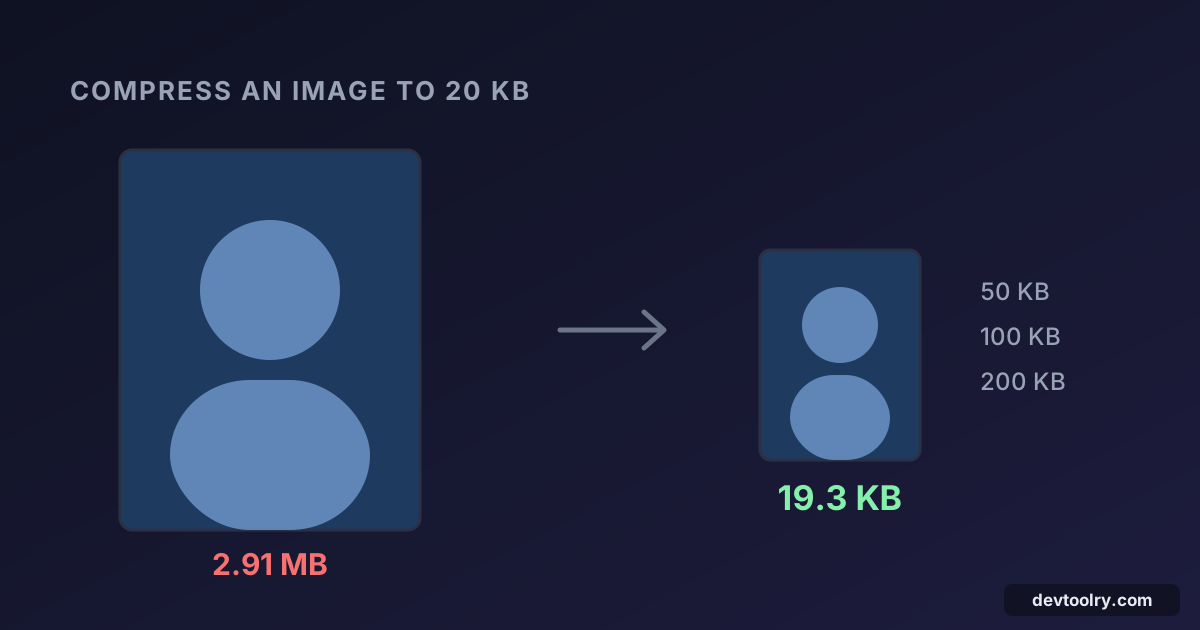
To compress an image to 20 KB, open an image compressor, choose File size, enter 20 and download the result. The tool lowers the JPEG quality until the file fits, and if that isn't enough, it also shrinks the image's pixel dimensions. For a typical phone photo, 20 KB means an image about 370 pixels wide, which is plenty for a passport-style photo on a form but too small to print.
Exam portals, job applications, visa forms and government websites ask for exactly this: a photo "between 20 KB and 50 KB" or a signature "under 20 KB". This guide shows what happens to a real photo at each common limit, and how to get the sharpest result inside the limit.
Real results: one phone photo at 20, 50 and 100 KB
We took a 12-megapixel-style phone photo, 2400 × 3200 pixels and 2.91 MB, and ran it through the Image Compressor at each size limit. These are the sizes the tool reported:
| Limit | Result | Pixel size |
|---|---|---|
| No limit (default quality 75) | 1.32 MB | 2400 × 3200 |
| 100 KB | 97.6 KB | 912 × 1216 |
| 50 KB | 47.8 KB | 648 × 864 |
| 20 KB | 19.3 KB | 367 × 489 |
Two things stand out. First, quality alone only gets a full-size photo down to about a megabyte, nowhere near 20 KB. Second, every result landed just under its limit: the tool aims for the best-looking file that still fits, not the smallest one possible.
Why the image gets smaller in pixels
A JPEG's size depends on two things: how many pixels it has and how hard each block of pixels is compressed (the quality setting). The compressor tries quality first, from 92% down to 40%. Below 40%, JPEG compression shows its typical blocky artefacts and colour smearing, so instead of going lower it reduces the image's dimensions and tries again.
That trade-off is what you want for an upload form. A 367 × 489 photo at good quality looks far better on screen than a 2400 × 3200 photo crushed to 20 KB, which would be a mess of 8 × 8 pixel blocks. And no form that asks for 20 KB expects a high-resolution image: the reviewer sees a thumbnail of your face.
Step by step
- Open the Image Compressor and choose your photo. It stays on your device: the compression runs in your browser, nothing is uploaded.
- Under Compress by, choose File size.
- Pick a preset (20, 50, 100, 200 or 500 KB) or type the limit your form gives.
- Check the result line, for example
2400 × 3200 · 2.91 MB → 19.3 KB, and press Download.
If the form gives a range such as "20 KB to 50 KB", aim for the top of it. Enter 50: you get the most detail the form will accept, and you're still safely inside the limit.
Crop first for a sharper face
At 20 KB every pixel counts, so don't spend them on the wall behind you. Crop the photo to your head and shoulders in the Image Cropper before compressing. A tightly cropped photo at 20 KB keeps far more detail in the face than a wide shot squeezed to the same size, because the same number of bytes is spread over a smaller area.
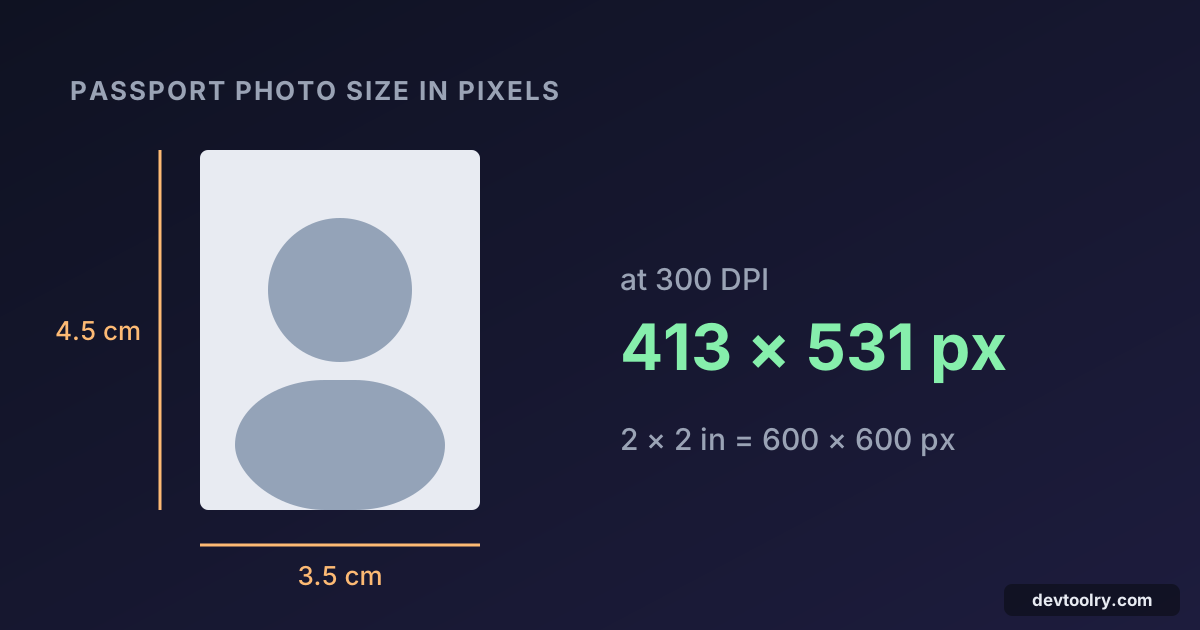
Many forms also give exact dimensions, for example 200 × 230 pixels or 3.5 × 4.5 cm. Resize to those first with the Image Resizer, then compress. A photo that is already small rarely needs much compression at all: resized to 413 × 531 pixels at quality 80, our test photo came to 42.2 KB without touching the size limit. Passport photo size in pixels explains how to turn centimetres into pixels.
Compressing a signature to 10 or 20 KB
Signatures are easier than photos because they are mostly white paper. Photograph or scan the signature in good light, crop it tightly so there is only a small margin around the ink, then compress to the limit. Two tips:
- Use JPEG, not PNG, for photos of paper. A PNG of a photographed page keeps every speck of paper texture and can be larger than the original JPEG. The Image Converter changes the format if your scanner app saved a PNG.
- Increase the contrast before you compress if your phone's gallery app can do it. A dark signature on clean white compresses much better than grey ink on grey paper.
Common problems
"The file is still too big" on the form. Some forms count a kilobyte as 1024 bytes and some as 1000. The compressor counts 1000, so a 20 KB result is at most 20,000 bytes and passes both kinds of check.
The form rejects the format. Most forms want JPG or JPEG (the same thing). Choose JPEG as the output format if your original was a PNG or WebP. iPhone photos saved as HEIC open only in browsers that can display HEIC, such as Safari; elsewhere, set the iPhone camera to "Most Compatible" so it saves JPEG.
The photo looks blurry. You asked for very few bytes for a large area. Crop tighter, or use the highest limit the form allows.
The form wants a minimum size too. "Between 20 KB and 50 KB" means a 9 KB file fails as well. Use the upper limit and check the result line before you download.
Summary
To get an image under 20, 50 or 100 KB, set the file size limit instead of guessing a quality value: the compressor finds the best quality that fits and shrinks the pixels only when it has to. Crop to what matters, resize to the dimensions the form asks for, and pick the highest size the form allows. For PDFs with the same kind of limit, compressing a PDF without losing quality covers the equivalent steps.

Written by
Avinash Kori
Founder of Devtoolry
Avinash is a full-stack web developer from Surat, India, with eight years of experience in PHP, Laravel and Angular. He built Devtoolry so developers can solve everyday problems quickly with free tools that run entirely in the browser, and writes practical guides on the formats, encodings and techniques behind them.
Try it yourself
The free tools used in this article. They run in your browser, so nothing you paste is uploaded.
Image Compressor
Compress JPG, PNG and WebP images online to an exact size like 20 KB, 50 KB or 100 KB for upload forms, or by quality. Images never leave your browser.
Image Cropper
Crop images online with a draggable box, fixed ratios like 1:1, 16:9 or 1200×630, or exact pixel values. Save as JPEG, PNG or WebP without uploading.
Image Resizer
Resize images online to exact pixels, a percentage or presets like 1200×630 for Open Graph. Crop to fill, pad or stretch, in batches, without uploading.