How to Make an HTML Email Signature That Works in Gmail and Outlook
Build an email signature that looks right everywhere: tables, inline styles, hosted images, dark mode, Gmail's size limit and install steps for each client.
 By Avinash KoriPublished 6 min read
On this page
An email signature is the most-viewed piece of design most professionals own: it's at the bottom of every message they send. It's also surprisingly hard to get right. A signature that looks perfect in your browser can arrive in Outlook with a giant photo, in Gmail with no images at all, and in dark mode with your black logo on a black background.
The reason is that email clients render HTML very differently from browsers. This guide explains the rules that make signatures work everywhere, the common failures and their fixes, and how to install a signature in each major client.
Why email HTML is different
Web pages are rendered by a handful of modern browser engines. Emails are rendered by dozens of clients with very different capabilities:
- Classic Outlook for Windows renders HTML with Microsoft Word's engine. It ignores much of modern CSS: no flexbox, no grid, unreliable
marginandpaddingon many elements, limitedbackground-imagesupport. - Gmail removes
<style>blocks in many situations, strips some CSS properties and blocks embedded (data:) images in signatures. - Apple Mail and iOS Mail are WebKit-based and support most CSS, but apply their own dark-mode adjustments.
- Mobile apps shrink wide content and may override font sizes.
The safe approach is the one web developers used in 2005: tables for layout and inline styles for everything. It's old-fashioned, and it works in all of them.
Rule 1: lay out with tables
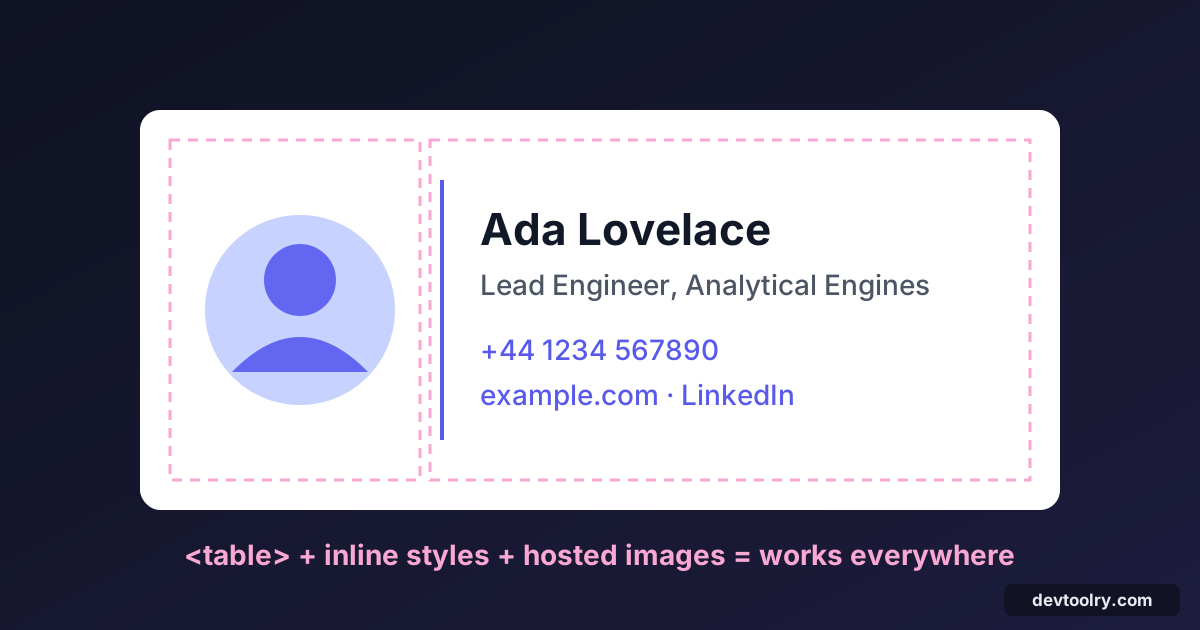
A typical signature has a photo or logo on the left and text on the right. In email, that's a table:
<table cellpadding="0" cellspacing="0" border="0" role="presentation" style="font-family: Arial, Helvetica, sans-serif; font-size: 14px; color: #1f2937;">
  <tr>
    <td style="padding-right: 16px; vertical-align: top;">
      <img src="https://example.com/ada-160.png" width="80" height="80" alt="Ada Lovelace" style="display: block; border-radius: 40px;">
    </td>
    <td style="vertical-align: top; border-left: 2px solid #595aec; padding-left: 16px;">
      <strong style="font-size: 16px; color: #111827;">Ada Lovelace</strong><br>
      Lead Engineer, Analytical Engines Ltd<br>
      <a href="tel:+441234567890" style="color: #595aec; text-decoration: none;">+44 1234 567890</a> ·
      <a href="https://example.com" style="color: #595aec; text-decoration: none;">example.com</a>
    </td>
  </tr>
</table>
Details that matter:
cellpadding="0" cellspacing="0" border="0"reset table spacing consistently across clients.role="presentation"tells screen readers the table is for layout, not data.- Spacing is done with
paddingon<td>cells, which Outlook respects, rather than margins. vertical-align: topkeeps text aligned with the top of the photo.
Rule 2: inline every style
Put styles in style attributes on each element, not in a <style> block or an external stylesheet. Stick to widely supported properties: font-family, font-size, font-weight, color, line-height, text-decoration, padding (on cells), border, width and height.
Fonts: use web-safe stacks like Arial, Helvetica, sans-serif or Georgia, serif. Custom web fonts only work in some clients (Apple Mail does, Gmail and Outlook generally don't) and fall back unpredictably. If brand typography matters, put it in the logo image.
Rounded photos: border-radius works in Gmail and Apple Mail but not in classic Outlook, which shows a square. If you need a circle everywhere, crop the image itself into a circle on a transparent or white background.
Rule 3: host images, and size them explicitly
Images are where most signatures break.
Host images on HTTPS. Upload the photo and logo to your website or a reliable host and reference them by URL. Embedded images (data: URLs) make the HTML huge and are blocked by Gmail. Images attached to the email show up as attachments (the paperclip icon) on many clients, which confuses recipients.
Set width and height attributes, not only CSS. Outlook ignores CSS sizing on images and renders them at their native size. That's how a 1000-pixel logo ends up filling the whole email.
Export at twice the display size for sharp results on high-resolution screens: a logo shown at 120 × 40 should be a 240 × 80 PNG, with width="120" height="40" in the HTML.
Use PNG or JPEG, not SVG. SVG isn't supported by Gmail or Outlook. Keep each image small, ideally under 50 KB.
Always add alt text. Many clients block images until the recipient allows them; the alt text is what they see instead.
Rule 4: stay under the size limits
Gmail rejects signatures over 10,000 characters. Table-based HTML with inline styles is verbose, and one embedded image can be hundreds of thousands of characters on its own. Keep the HTML lean:
- Use hosted images, never embedded ones.
- Remove comments and unnecessary whitespace; the HTML Minifier does this safely. Our guide to what minification does explains why whitespace inside text is collapsed rather than removed.
- Don't repeat the same long style string on every element if a parent cell can carry it.
The Email Signature Generator shows the character count and warns when a signature would be too long for Gmail.
Rule 5: plan for dark mode
Dark mode in email is inconsistent. Apple Mail and Outlook may invert or adjust colours automatically; Gmail on some devices partially inverts them. Common problems and fixes:
- Dark logos disappear on dark backgrounds. Use a logo with a transparent background and a thin light outline or a subtle light background block, or choose a mid-tone colour that reads on both.
- Pure black text gets inverted, but your brand colour might not, leaving dark blue text on a dark background. Test the actual colours in dark mode.
- Avoid white image backgrounds that become glaring rectangles in dark mode; use transparent PNGs.
Rule 6: keep it short and useful
A signature isn't a business card printed on every email. Include:
- Name, job title and company.
- One or two contact methods (phone, website or booking link).
- Optionally a photo or logo, and a few social links.
Leave out quotes, long legal disclaimers (if your company requires one, keep it short), animated GIFs and more than one banner. Make phone numbers tel: links and email addresses mailto: links so they're tappable on phones. Use text, not an image of text, for contact details, so recipients can copy them and so the signature still works when images are blocked.
Installing your signature
Copy the signature as rendered, not as code, in most clients. The generator's Copy signature button puts the formatted version on your clipboard.
Gmail (web): Settings (gear) → See all settings → General → Signature → Create new. Paste into the editor, choose the default for new emails and replies, and click Save changes at the bottom of the page.
Outlook (new Outlook and Outlook on the web): Settings → Accounts → Signatures → New signature. Paste, set the defaults, save.
Classic Outlook for Windows: File → Options → Mail → Signatures. Paste into the editor. If formatting breaks, paste into a new email first, then copy from there.
Apple Mail (macOS): Mail → Settings → Signatures → +. Paste the signature, and uncheck "Always match my default message font", or Mail will replace your fonts.
iPhone and iPad: Settings → Apps → Mail → Signature. Paste; iOS keeps basic formatting but may drop some styles. Shake to undo if it pastes as plain text, or send the signature to yourself and copy it from the email.
Testing before you roll it out
- Send test emails to Gmail, Outlook and Apple Mail accounts, and open them on desktop and phone.
- Check dark mode on each.
- Block images (most clients have a setting) to see the alt text version.
- Reply and forward a message: some clients restyle quoted signatures.
- Look at the HTML you're about to install. The HTML Viewer renders it safely, so you can check it before pasting.
Summary
Email clients aren't browsers, so signatures must use tables for layout, inline styles, web-safe fonts and hosted PNG or JPEG images with explicit width, height and alt attributes. Stay under Gmail's 10,000-character limit, design for dark mode, keep the content short and tappable, and test in Gmail, Outlook and Apple Mail before rolling it out.

Written by
Avinash Kori
Founder of Devtoolry
Avinash is a full-stack web developer from Surat, India, with eight years of experience in PHP, Laravel and Angular. He built Devtoolry so developers can solve everyday problems quickly with free tools that run entirely in the browser, and writes practical guides on the formats, encodings and techniques behind them.
Try it yourself
The free tools used in this article. They run in your browser, so nothing you paste is uploaded.
Email Signature Generator
Create a professional email signature from ready-made templates, or paste your own HTML. Copy it into Gmail, Outlook or Apple Mail, or download the HTML.
HTML Minifier
Minify HTML online: remove comments and collapse whitespace while keeping pre, textarea, script and style blocks intact. See the size saved instantly.
HTML Viewer
Free online HTML viewer: paste HTML code and see it rendered live in a secure sandboxed preview. Check snippets, emails and templates with scripts off.