How to View and Preview HTML Online: Snippets, Files and Email Templates
View HTML online: paste code to render a live preview, open an .html file, check an email template, and fix blank or unstyled previews. No upload or install.
 By Avinash KoriPublished 4 min read
On this page
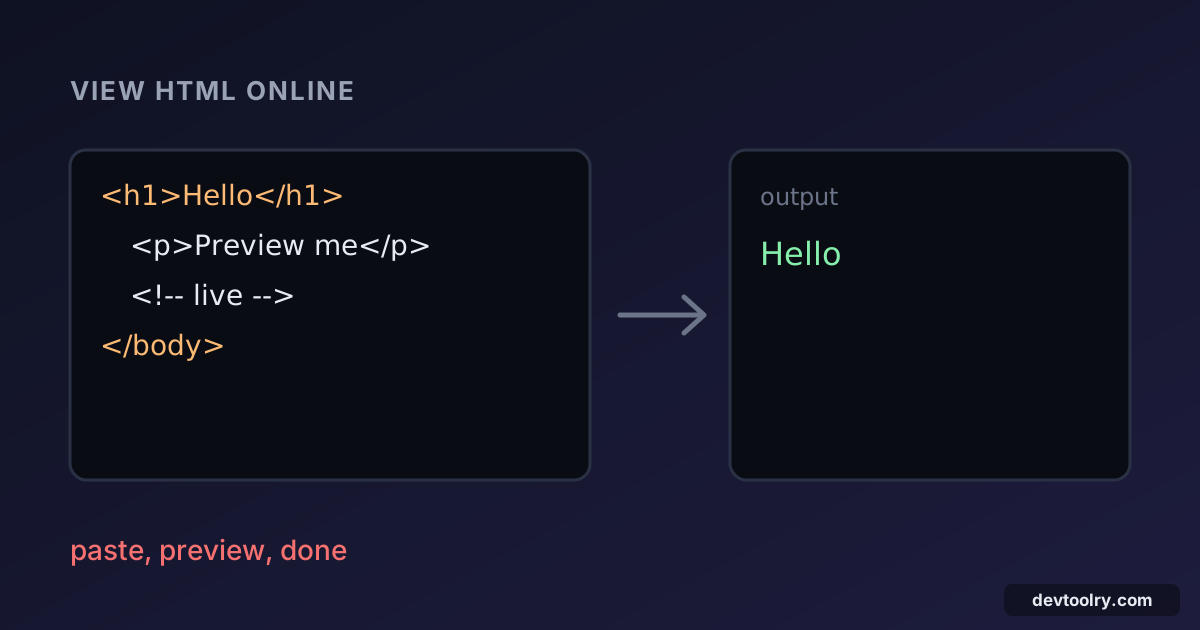
HTML is the one language you can read in two ways: as text, with tags and attributes, and as the page a browser draws from it. An HTML viewer shows you the second view of the first. You paste the markup, and the page appears. That is useful when you are checking a snippet from a tutorial, debugging an email template, testing a layout before it touches a site or just trying to understand what a piece of markup does.
This guide explains how to view HTML online, what each approach is good for, and why a preview sometimes looks different from the finished page.
View HTML code in a live preview
The fastest route is an online viewer. Open the HTML Viewer, paste your code and the rendered result appears beside it. Try this:
<!doctype html>
<html lang="en">
  <head>
    <meta charset="utf-8">
    <title>Preview test</title>
    <style>
      body { font-family: system-ui, sans-serif; margin: 2rem; }
      .card { border: 1px solid #ccc; border-radius: 8px; padding: 1rem; max-width: 20rem; }
    </style>
  </head>
  <body>
    <div class="card">
      <h1>Hello</h1>
      <p>This is a rendered preview.</p>
    </div>
  </body>
</html>
You should see a bordered card with a heading and a line of text. Change Hello to anything else and the preview updates as you type.
Everything in the example is in one file: the styles sit in a <style> element, so the preview needs nothing else to look right. That matters because a viewer sees only the code you paste, not the other files on your computer.
View an .html file
If the HTML is already in a file, there are two choices. You can open the file straight in your browser: double-click it, or drag it onto a browser window. The browser reads it from disk and renders it. Or you can open it in an editor, copy the contents and paste them into the viewer. The viewer route is better when you want to edit and compare quickly, or when you are on a device where opening local files is awkward.
Why a preview may look wrong
A blank or unstyled preview nearly always has one of these causes:
- External files do not load.
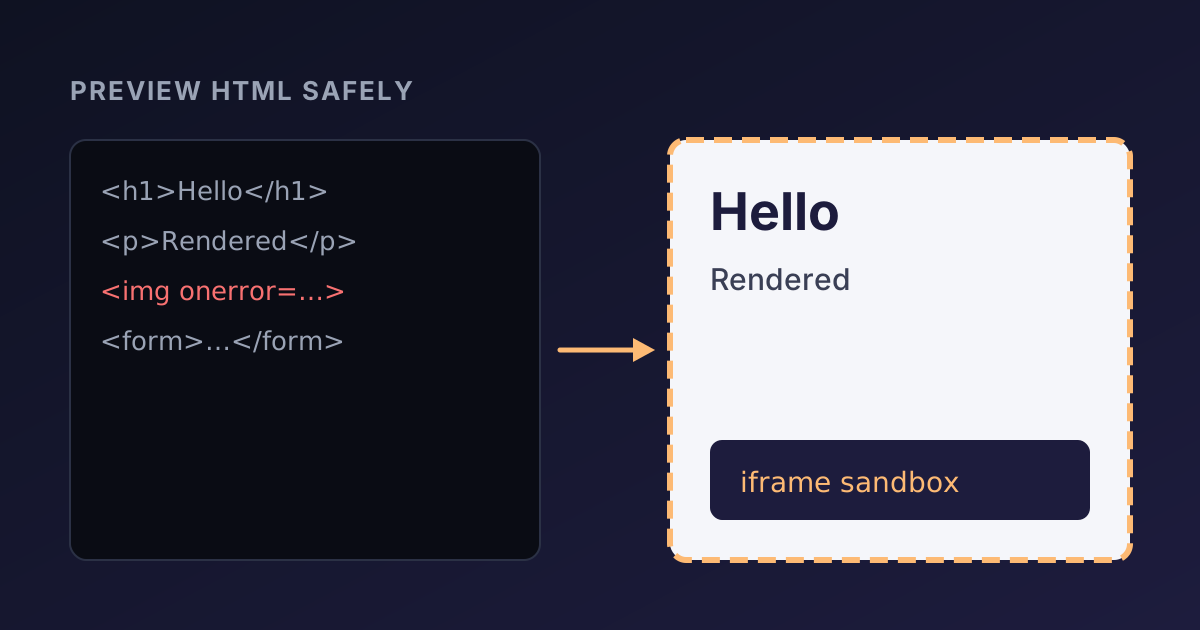
<link rel="stylesheet" href="style.css">and<img src="photo.jpg">point to files the viewer does not have. Inline the CSS, or use fullhttps://URLs for images. - Scripts are switched off. A good viewer renders untrusted markup in a sandbox with scripts disabled, so a page that builds its content with JavaScript shows nothing. To test scripts, use a JavaScript runner. Why scripts are off, and how the sandbox works, is covered in how to preview HTML code safely.
- Missing doctype. Without
<!doctype html>browsers switch to quirks mode, which changes how sizes and spacing are calculated. Start every page with it. - Wrong width. Layouts built for desktop can look cramped in a narrow preview pane. Add
<meta name="viewport" content="width=device-width, initial-scale=1">and use responsive units. - Broken markup. An unclosed
<div>or a missing quote can swallow the rest of the page. Run the code through the HTML formatter: inconsistent indentation makes mismatched tags easy to spot.
Snippets worth trying
A viewer is also a quick way to learn what an element does. Paste each of these and look at the result:
<details>
  <summary>Click to expand</summary>
  <p>This content is hidden until you open it, with no JavaScript.</p>
</details>
The <details> element gives you a collapsible section for free. Click the summary and the paragraph appears.
<table border="1" cellpadding="6">
  <tr><th>Tool</th><th>Purpose</th></tr>
  <tr><td>Viewer</td><td>Render HTML</td></tr>
  <tr><td>Formatter</td><td>Indent HTML</td></tr>
</table>
This draws a two-column table with a header row. Add <caption> as the first child of <table> and a title appears above it.
<form>
  <label for="email">Email</label>
  <input id="email" type="email" placeholder="[email protected]" required>
  <button>Subscribe</button>
</form>
You get a labelled field and a button. The type="email" and required attributes make the browser check the value for you. Whether a form can actually submit inside a sandboxed preview depends on the viewer, so treat it as a layout check only.
Check an HTML email
HTML emails are rendered by mail clients, not browsers, and clients support far less CSS than a browser does. A viewer is still handy for a first check: paste the template and confirm that the structure, text and inline styles come out as intended. Keep to inline styles and table-based layouts, and test in the actual clients afterwards, because Outlook, Gmail and Apple Mail each strip or rewrite different things. Signature templates follow the same rules; the HTML email signature guide lists what survives.
View the HTML of an existing page
To read the markup of a page you can already see, use your browser: press Ctrl+U (or Cmd+Option+U on macOS) to view the source, or open DevTools with F12 and look at the Elements panel. The Elements panel shows the page as it is now, after JavaScript has changed it, while view-source shows what the server first sent. When a page looks different from its source, the cause is usually JavaScript editing the page after load.
Turn the preview into a PDF
Once the page looks right you may want a copy that is easy to send. The HTML to PDF converter renders the same markup into a PDF. Check the print layout first: print styles can differ from screen styles, and a @media print rule is the usual way to hide navigation or adjust margins.
Summary
Paste HTML into an online viewer to see it rendered at once, keep CSS and images self-contained so the preview has everything it needs, and expect scripts to stay off for safety. When something looks wrong, check for external files, a missing doctype and unclosed tags in that order. All of this runs in your browser on Devtoolry, and your markup is not uploaded.

Written by
Avinash Kori
Founder of Devtoolry
Avinash is a full-stack web developer from Surat, India, with eight years of experience in PHP, Laravel and Angular. He built Devtoolry so developers can solve everyday problems quickly with free tools that run entirely in the browser, and writes practical guides on the formats, encodings and techniques behind them.
Try it yourself
The free tools used in this article. They run in your browser, so nothing you paste is uploaded.
HTML Viewer
Free online HTML viewer: paste HTML code and see it rendered live in a secure sandboxed preview. Check snippets, emails and templates with scripts off.
HTML Formatter
Format and beautify messy or minified HTML into clean, indented markup with Prettier, including embedded CSS and JavaScript. Runs locally in your browser.
HTML to PDF Converter
Convert HTML to a downloadable PDF online with live preview, paper sizes, orientation, margins, page breaks and page numbers. Your file is not stored.