How to Remove the Background from an Image for Free, in Full HD
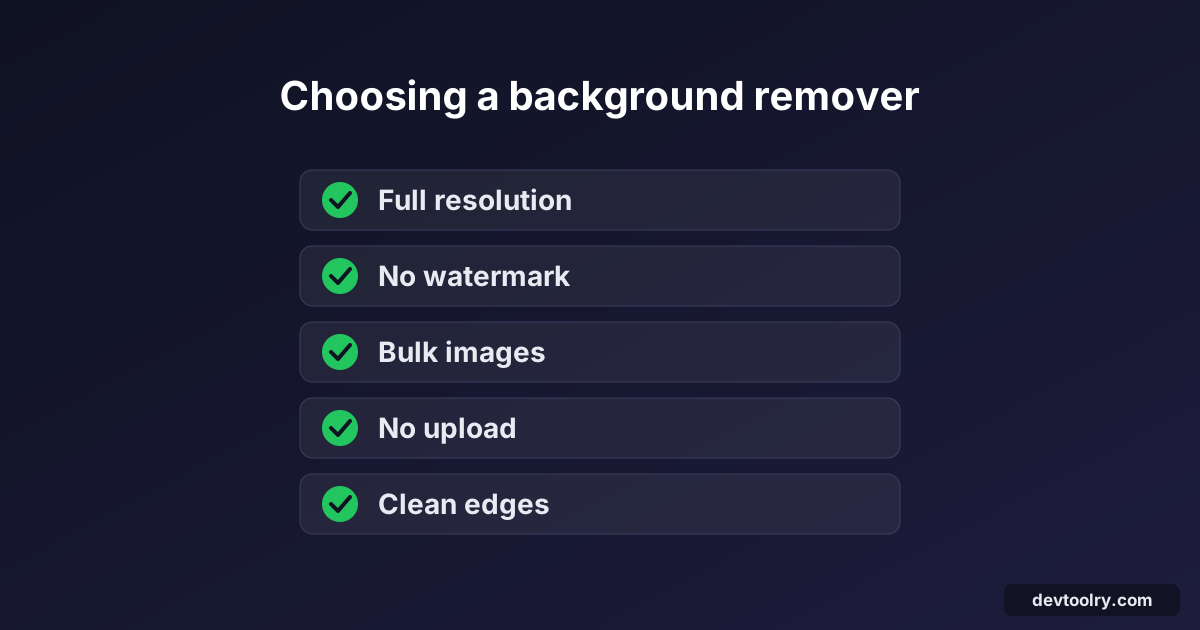
Remove a photo's background free with AI, at full resolution and in bulk, with no watermark or upload. Transparent PNG, white background or any colour.
 By Avinash KoriPublished 6 min read
On this page
Removing the background from a photo used to mean an hour with the pen tool in Photoshop. Today an AI model does it in a second or two. The catch is that most "free" background removers give you a small preview for free and charge for the full-size file, add a watermark, or want your photo uploaded to their server first.
This guide shows how to cut out a person, product or pet for free, at the full resolution of your original, in bulk, without uploading anything. It also covers putting the cut-out on a white or coloured background, which is what most people actually need for ID photos, product listings and profile pictures.
The quick way: remove the background in your browser
The Background Remover runs an AI segmentation model directly in your browser:
- Open the tool and drop in one photo, or a whole folder's worth.
- The first time, the AI model downloads once: a standard model (44 MB) on most devices, or a high-quality model (115 MB) on graphics cards that can run it. Later visits reuse it from your browser's cache.
- Each background is removed in turn. The preview shows the result on a checkerboard (the checkerboard means "transparent"), and a slider lets you compare it with the original edge by edge.
- Choose Transparent, White or Colour as the background, and PNG, JPG or WebP as the format.
- If some background is left over, click Touch up edges and paint over it with the Erase brush (or bring back a missing part with Restore).
- Download each image, or everything at once as a ZIP.
There's no account, no credit system and no watermark. Because the model runs on your own device, there's also no reason to limit the output size.
What "HD" really means for a background remover
Most AI background removal models don't look at your full-size photo. They work on a fixed-size copy, often 1024 × 1024 pixels, and output a mask: a grey-scale image where white means "keep", black means "remove" and grey means "partly transparent", such as strands of hair.
What happens next decides the quality you get:
- Low-resolution output. Some services apply the mask to the small working copy and give you that. A 4000 × 3000 phone photo comes back at around 1000 pixels wide, which looks soft when printed or zoomed.
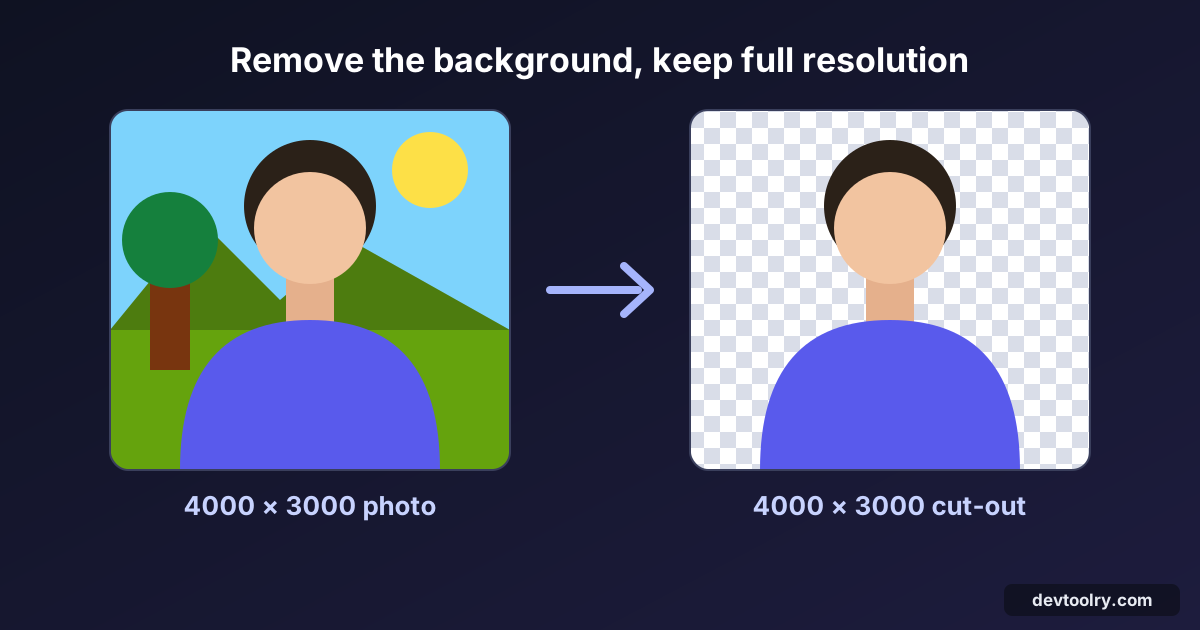
- Full-resolution output. The mask is scaled up smoothly to the size of the original and applied to the original pixels. Every pixel of the subject is your original pixel; only the transparency comes from the model.
The Devtoolry tool does the second: a 4000 × 3000 photo comes back as a 4000 × 3000 cut-out. Saved as PNG, the subject's pixels are unchanged, so you can edit the result further without quality loss.
Transparent, white or coloured background?
The background you need depends on where the image is going:
| Use | Background | Format |
|---|---|---|
| Logo, sticker, design layer, slide | Transparent | PNG or WebP |
| Passport, visa or ID photo | White (or the colour the form asks for) | JPG |
| Amazon, Flipkart or Shopify product photo | White | JPG |
| Profile picture, thumbnail | Any brand colour | JPG or PNG |
| Web page hero image | Transparent | WebP |
Two rules to remember:
- JPG cannot be transparent. If you save a cut-out as JPG, the transparent parts must be filled with something, so the tool fills them with white. Choose PNG or WebP to keep transparency.
- "AI background changer" is the same job. Changing a background to a plain colour is removing it and painting a colour behind the subject. Pick Colour in the tool and choose any shade.
Removing backgrounds in bulk
If you sell online, you rarely have one photo; you have fifty. Upload-based services usually limit bulk processing to paid plans because every image costs them server time. A browser tool has no such cost: add all your images at once, and they're processed one after another on your device.
A few tips for large batches:
- Expect a few seconds per photo on most devices. The standard model runs on the processor. On graphics cards that can run it, the tool switches to a larger, more accurate model, which is also much faster.
- Keep the tab open until the counter shows every image as ready, then use Download all (ZIP).
- Turn on Crop to subject for product photos. It trims the empty space around the object (keeping a small margin), so every product fills its frame the same way.
Passport and product photos: after the background
Removing the background is usually step one. For an online application or a marketplace listing, you then need an exact size and a small file:
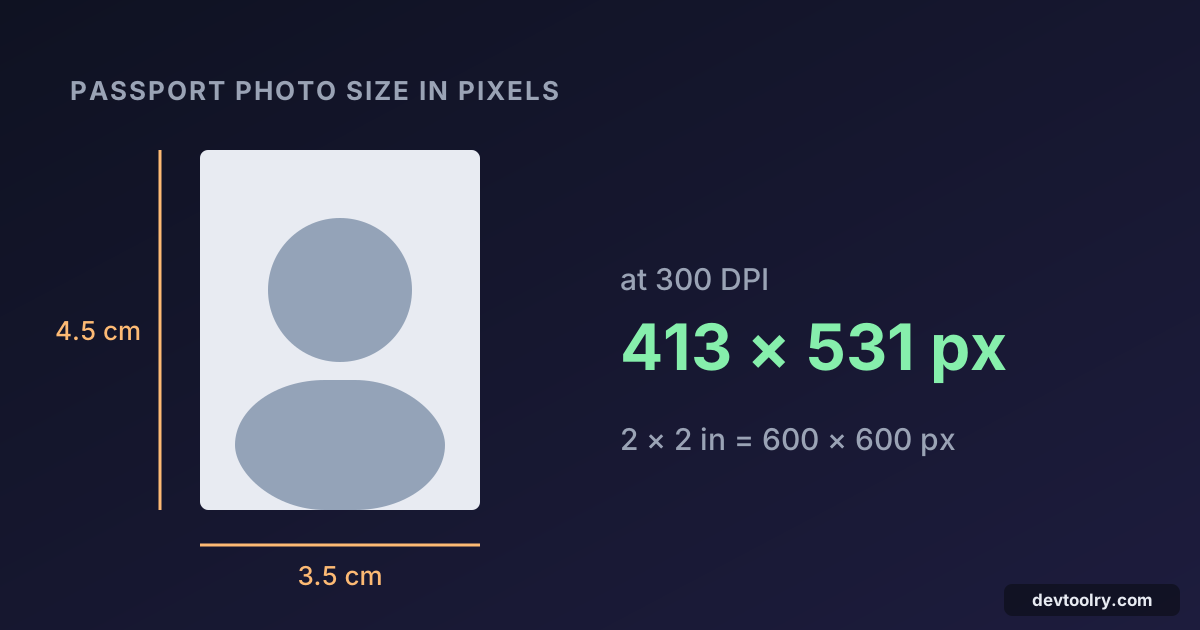
- Crop the cut-out to the required ratio with the Image Cropper: 1:1 for most marketplaces, 35:45 for a 3.5 × 4.5 cm passport photo.
- Resize it to the exact pixel size with the Image Resizer. Our guide to passport photo sizes in pixels lists the common sizes, such as 413 × 531 pixels for 3.5 × 4.5 cm at 300 DPI.
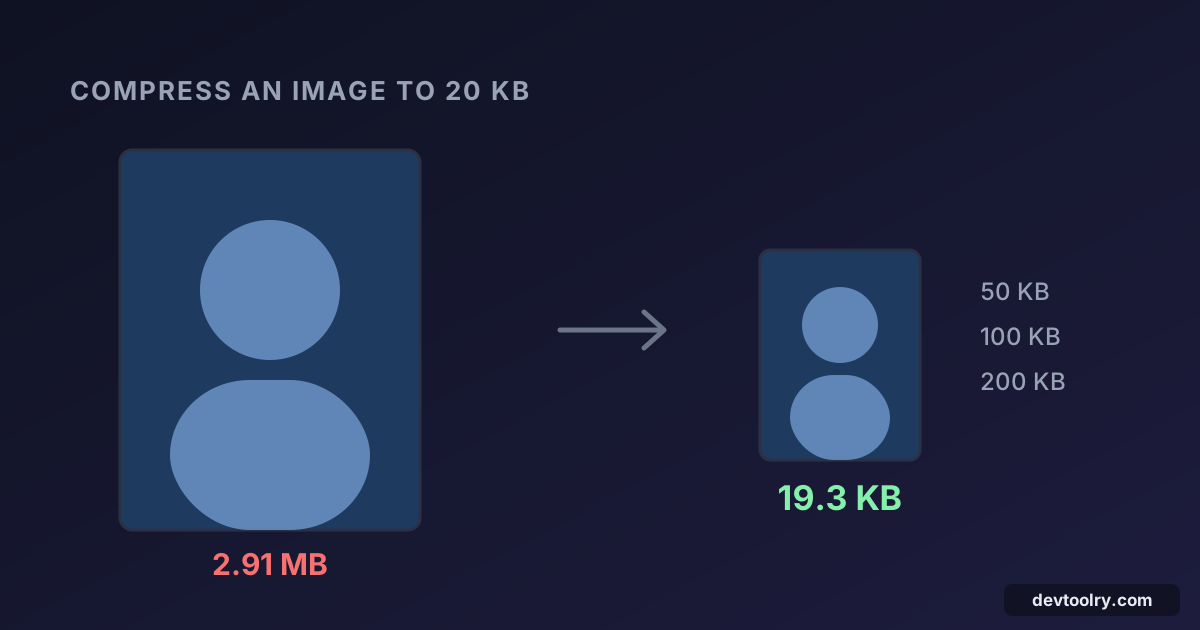
- Compress it to the file size limit with the Image Compressor. Many forms ask for under 50 KB or 100 KB; see how to compress an image to 20 KB, 50 KB or 100 KB.
Official photo rules also cover head size, lighting and expression, which no background remover can fix, so check them before you submit.
Which photos work best
Background removal models learn from millions of example cut-outs, and they do best on photos that look like those examples:
- A clear main subject: a person, a product, an animal, a car.
- Contrast between subject and background: a dark jacket against a light wall is easy; a beige shirt against a beige wall is hard for any model.
- Good, even light, without strong shadows that look like part of the subject.
Harder cases include shadows on a wall in the same colour as the subject's clothes (the model may keep the shadow as part of the subject), glass and other see-through objects, very fine hair against a busy background, and groups of overlapping objects.
Use the comparison slider to check the edges before you download. If something is left over, Touch up edges fixes it in seconds: drag the Erase brush over the leftover area, then click Done, and the full-resolution cut-out is rendered again. Restore works the other way round, for a hand or a bag strap the model removed by mistake.
Is it safe to use an online background remover?
With an upload-based service, your photo is sent to a server, processed there and usually stored for a while. For a product shot that may be fine; for an ID document, a child's photo or an unreleased product, think twice.
A browser-based tool avoids the question. The only things downloaded are the AI model and the code that runs it; your photos are read, processed and saved on your own device and are never sent anywhere. You can check this yourself in your browser's developer tools: the Network tab shows the model download, but no request that carries your image.
Summary
- A good free background remover gives you the full resolution of your original, not a small preview.
- PNG or WebP keep transparency; JPG needs a white or coloured background.
- For bulk work, a browser tool has no per-image cost, so it doesn't need to limit the number of images.
- For forms and marketplaces, follow up with crop, resize and compress.
Comparing tools? See what to check before you choose a background remover, including what remove.bg's move to Canva means.
Remove a background now. It's free, works in full resolution and your photos never leave your device.

Written by
Avinash Kori
Founder of Devtoolry
Avinash is a full-stack web developer from Surat, India, with eight years of experience in PHP, Laravel and Angular. He built Devtoolry so developers can solve everyday problems quickly with free tools that run entirely in the browser, and writes practical guides on the formats, encodings and techniques behind them.
Try it yourself
The free tools used in this article. They run in your browser, so nothing you paste is uploaded.
Background Remover
Remove the background from photos free with AI: full HD resolution, bulk images, transparent PNG or white background. No upload, no sign-up, no watermark.
Image Cropper
Crop images online with a draggable box, fixed ratios like 1:1, 16:9 or 1200×630, or exact pixel values. Save as JPEG, PNG or WebP without uploading.
Image Resizer
Resize images online to exact pixels, a percentage or presets like 1200×630 for Open Graph. Crop to fill, pad or stretch, in batches, without uploading.
Image Compressor
Compress JPG, PNG and WebP images online to an exact size like 20 KB, 50 KB or 100 KB for upload forms, or by quality. Images never leave your browser.