Edit Text in Image
Edit text in images online free: change words, prices and dates in photos and screenshots. Old text is removed with AI and new text matches size and colour.
Runs in your browser · Nothing uploadedFree · No sign-up
Something not working, or missing a feature? Send feedback
About the Edit Text in Image
Edit Text in Image changes words, numbers, dates and prices inside photos and screenshots. Every line of text is found and listed; retype a line and the preview updates at once. Apply removes the old words with an AI fill and draws your text at the original size, colour and position, so the change blends in. You can also drag a box over any area to add new text. Everything runs in your browser, nothing is uploaded, and there are no credits or watermarks.
Text is found with Tesseract, removed with MI-GAN and redrawn by your browser; the models download once (about 31 MB) and run on your device. The image is never uploaded.
How to use the Edit Text in Image
- Choose an image or screenshot, drop it on the page, or paste it with Ctrl+V.
- Wait while the text is found, then retype any line in the list (or click its box on the image).
- For the selected line, pick the closest font, bold or italic, and adjust the colour or size if needed.
- Press Apply to replace the text, compare with the original, and download the image.
Real results
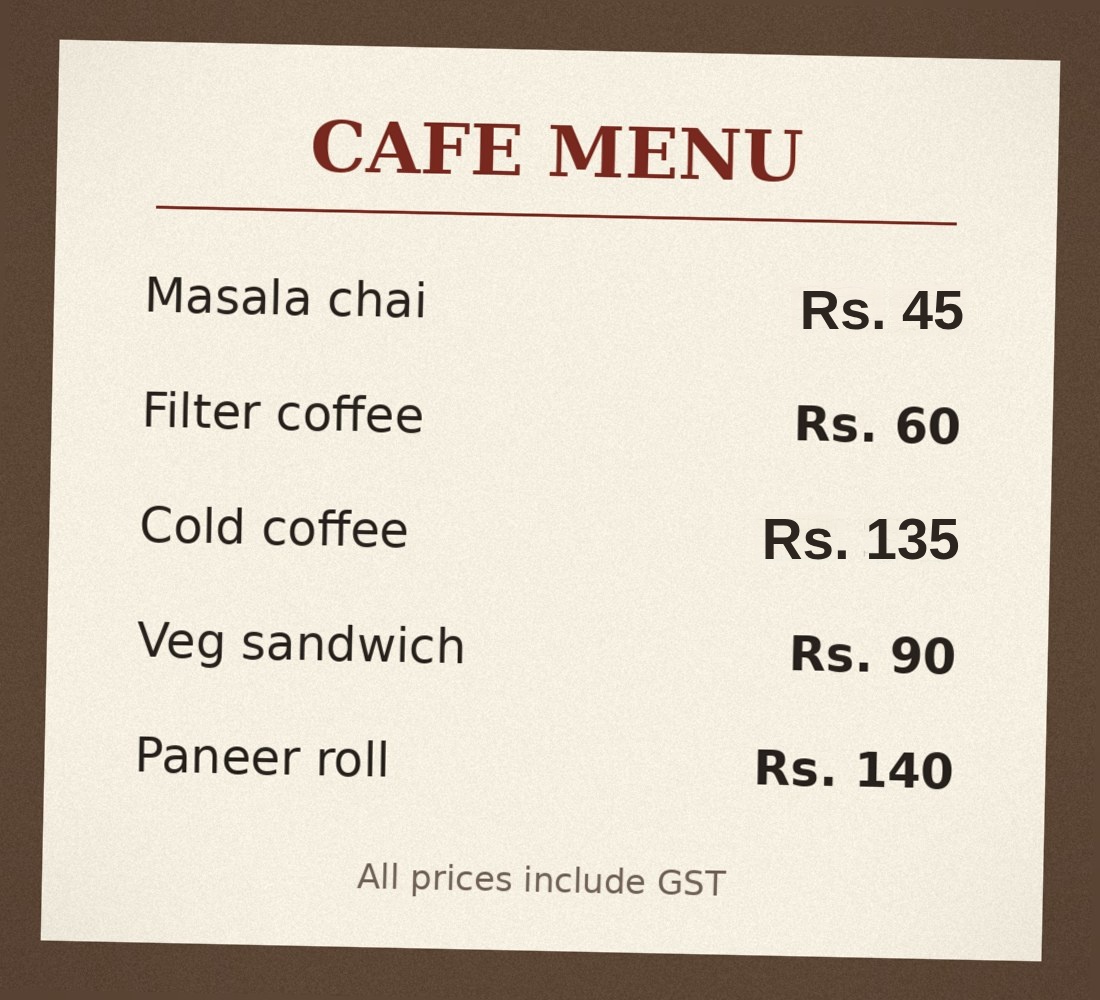
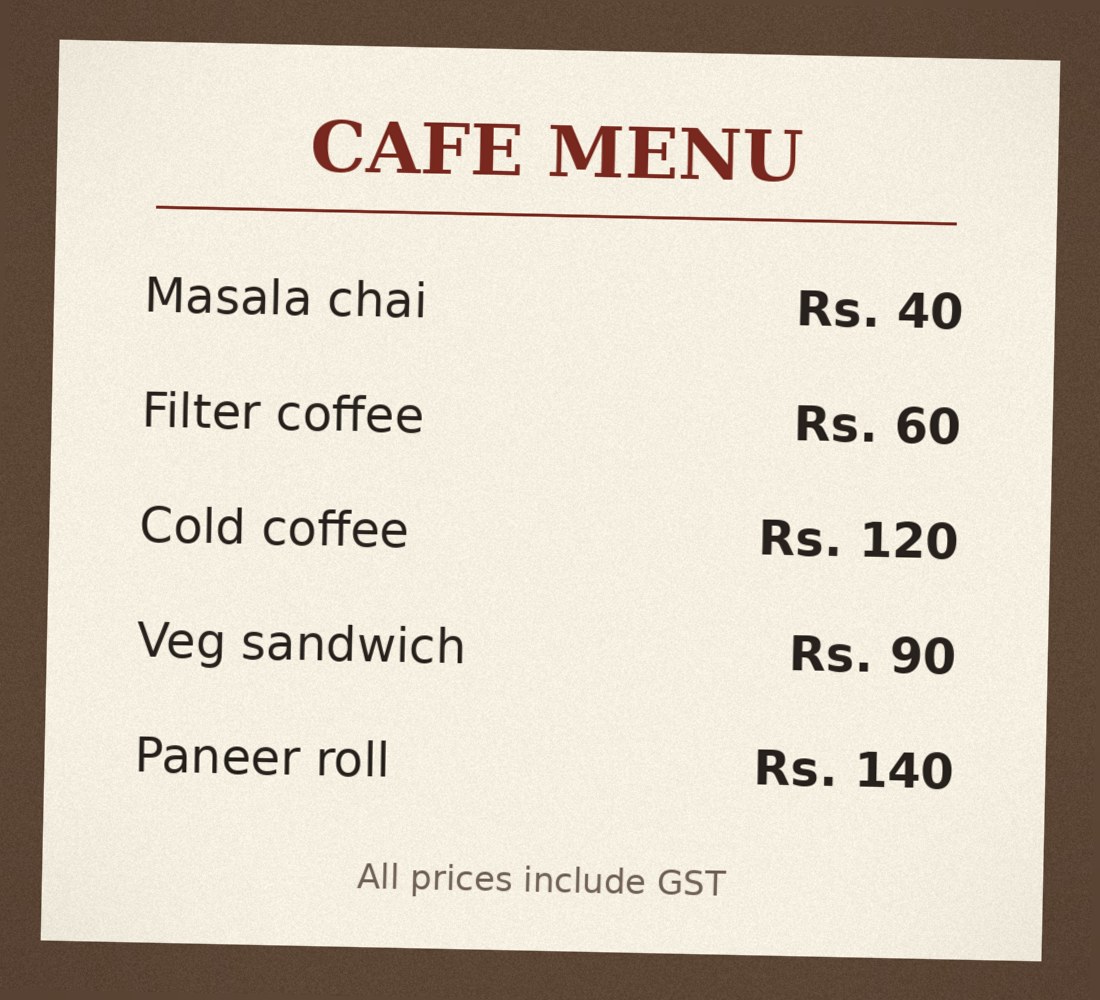
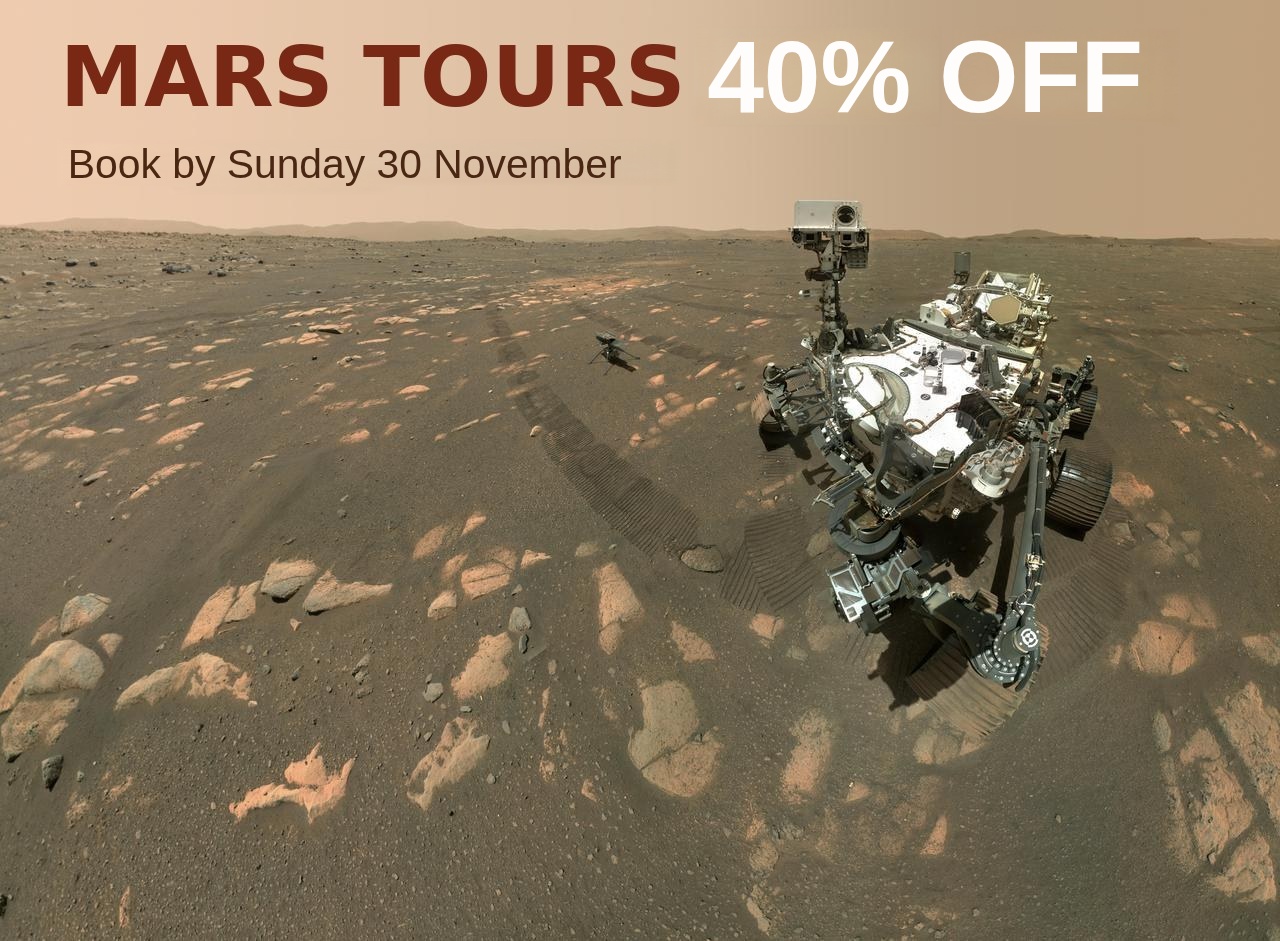
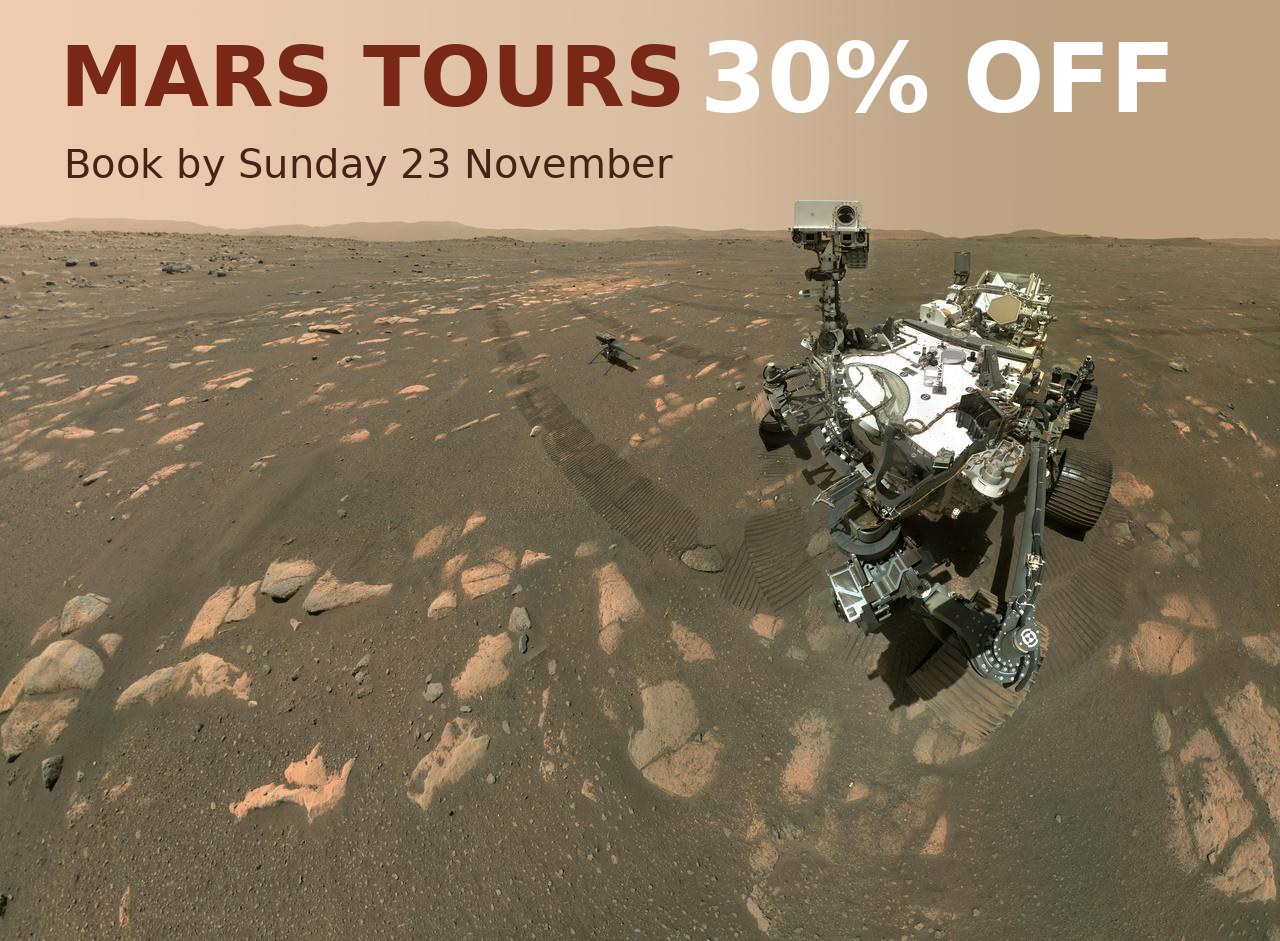
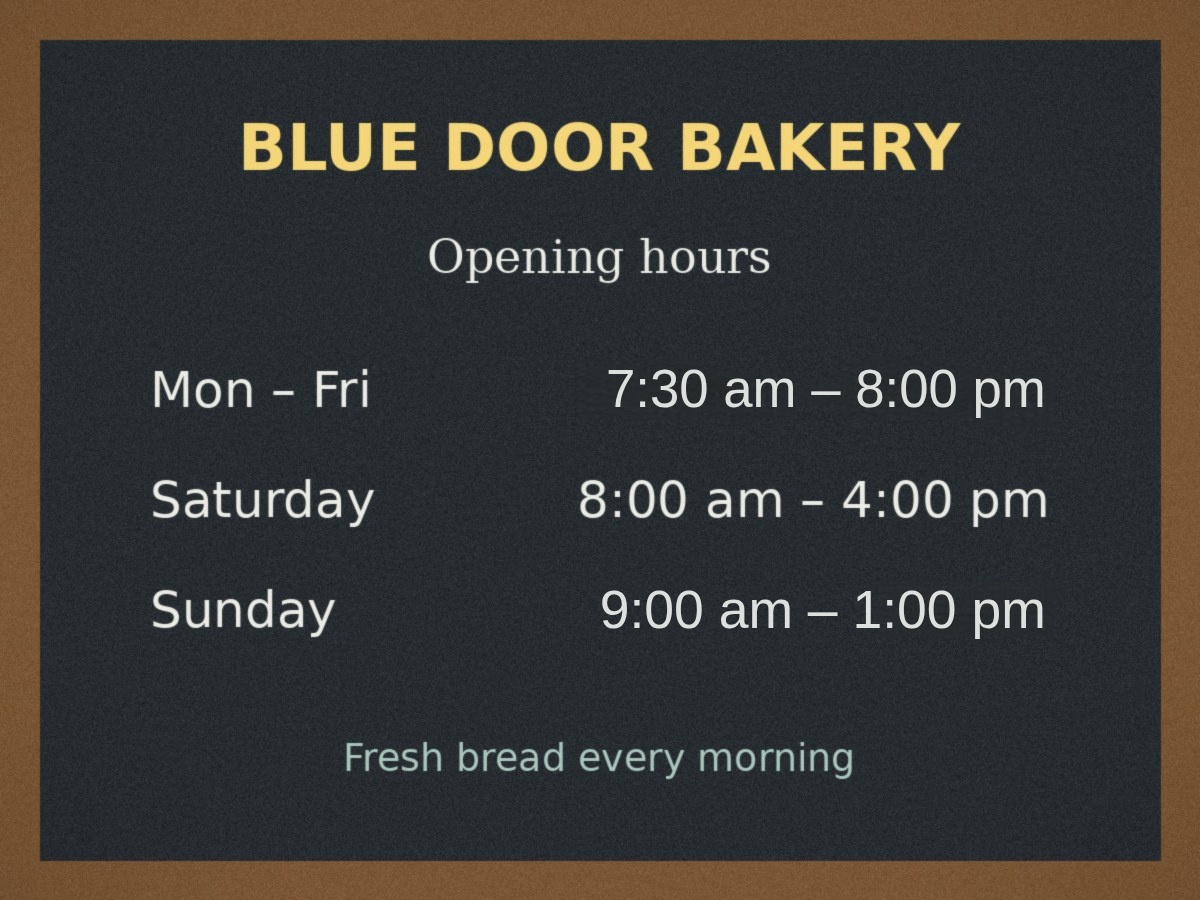
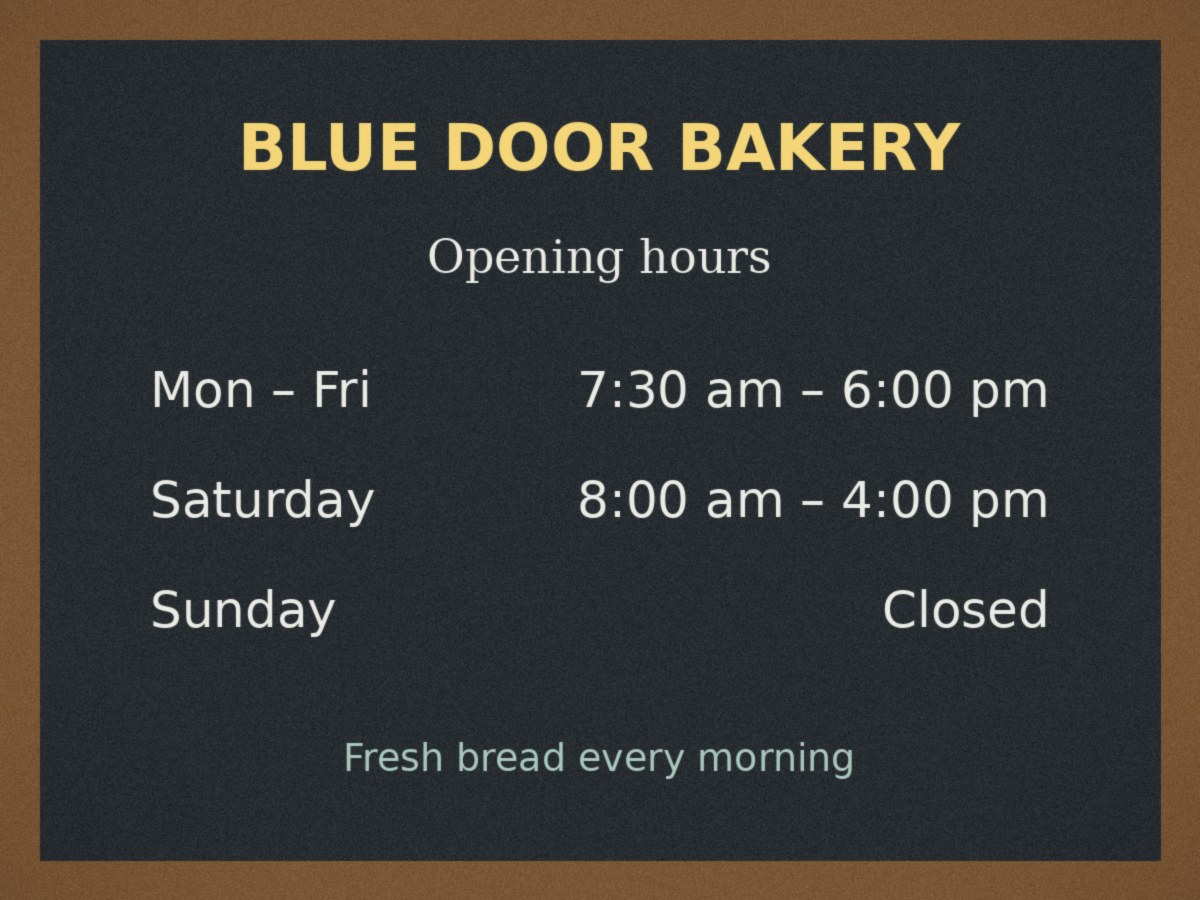
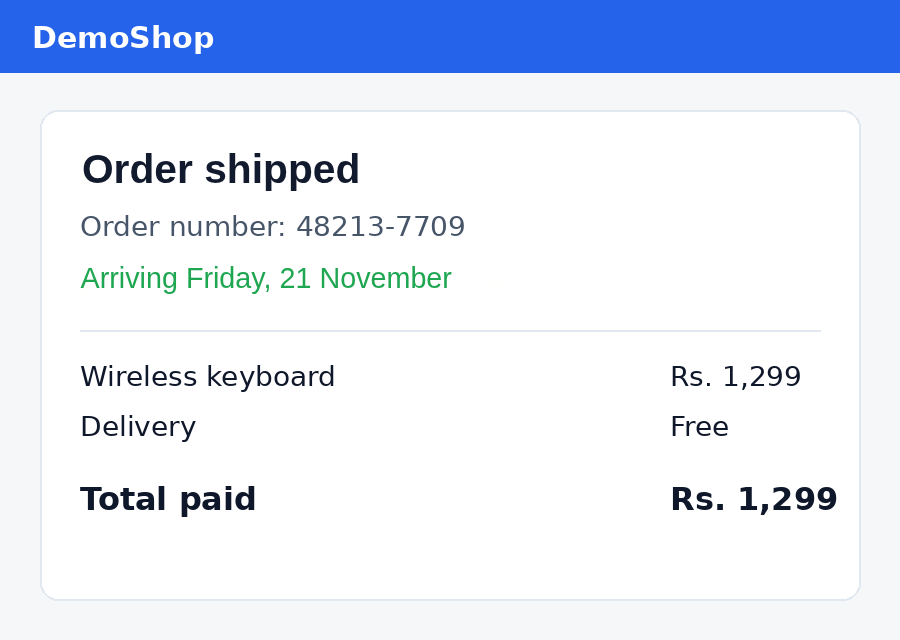
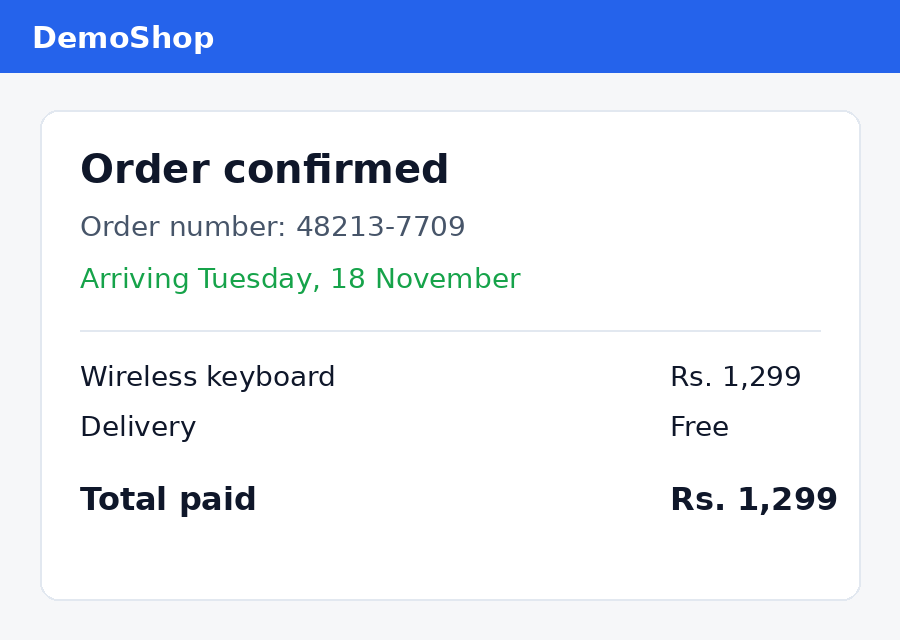
Each result below is the actual download from this tool after retyping the lines named under it: no mockups and no retouching. Drag the slider to compare.
Change a price in an image
Change a date and a discount on a poster
Change opening hours on a sign
Edit text in a screenshot
Where it works well
- Screenshots, receipts, forms and slides with flat backgrounds and standard fonts.
- Changing a number, a date, a price or a name of similar length.
- Plain, straight text in one colour.
Where it struggles
- Matching an exact typeface: the new text uses the closest system font you pick, at the original size, colour and position, not the original font file.
- Text with outlines, shadows, gradients, textures, curves or perspective.
- Photos of signs or pages taken at a tilt: the new text is drawn level, so straighten the photo first.
- Handwritten, decorative and non-Latin text, which the detector may not find: drag a box over it and type the replacement.
Works well with the Edit Text in Image
- Remove Text from Image: when the text should simply disappear.
- Image to Text (OCR): to copy all the text out of a screenshot.
- Blur Face in Photo: to hide faces, names or number plates before sharing a screenshot.
Frequently asked questions
Does it keep the same font?
It keeps the size, colour, position and baseline of the original line and draws your text with the closest system font you choose (sans, serif, monospace, bold display or handwriting). It does not recreate the exact typeface, so pick the one that looks closest; for standard UI and document fonts the difference is hard to see.
Why is the preview different from the result?
The preview covers the old text with a flat patch of the background colour so it can update as you type. Apply replaces that patch with an AI fill that continues the real background, then draws the text.
Is my image uploaded?
No. Text detection, the AI fill and the drawing all run in your browser after a one-time download of about 31 MB.
Can I use it to change documents or receipts?
Use it on your own designs, screenshots and photos, for example to fix a typo or update a price. Changing receipts, certificates, IDs or other documents to pass them off as genuine is forgery and is illegal.
Some text was not found. What can I do?
Drag a box over it on the image: the area is cleared on Apply and you can type the replacement into the new box. Handwritten, decorative and non-Latin text is often missed by the detector.
How do I edit text in a screenshot?
Paste the screenshot with Ctrl+V (or drop the PNG), wait a second for the lines to be listed, and retype the one you want to change. App screenshots are the easiest case: the background is flat, so the old words disappear without a trace and the new text is drawn at the same size and colour. Pick Sans for most app and web fonts, and keep the file as PNG so the text stays sharp.
Can I change a price or a date and keep the layout?
Yes. Retype only the line that changes; every other line stays untouched. If the new text is longer and the line sits in a right-aligned column (prices, times), set Align within the old line to Right so it grows to the left instead of past the edge.
Does it work on photos taken at an angle?
Only roughly. New text is always drawn level, so on a sign or page photographed at a tilt or in perspective it no longer follows the slope of the other lines, and the size can come out too large. Straighten the photo with the Image Cropper or rotate it first, or use a scan.
Related tools
Background Remover
Remove the background from photos free with AI: full HD resolution, bulk images, transparent PNG or white background. No upload, no sign-up, no watermark.
Remove Object from Photo
Remove unwanted objects, people and blemishes from photos free: paint over them and AI fills the background on your device. No upload, no sign-up, full size.
Remove Text from Image
Remove text from images free: words, dates and captions are found automatically and AI rebuilds the background. Works on photos and screenshots, no upload.
AI Image Upscaler
Upscale images 2× or 4× with AI (Real-ESRGAN): sharper photos, logos and screenshots in higher resolution. Runs in your browser, nothing is uploaded.
Passport Photo Maker
Make passport and visa photos online: US 2×2 in, UK, Schengen, India 3.5×4.5 cm and more, with AI white background, head guides and a 4×6 print sheet. No upload.
Image to Text (OCR)
Extract text from images, screenshots and scanned PDFs with free OCR in your browser. English, Hindi and 20 more languages; nothing is uploaded.