Why Instagram Shows 'AI Info' on Your Photo, and What Triggers It
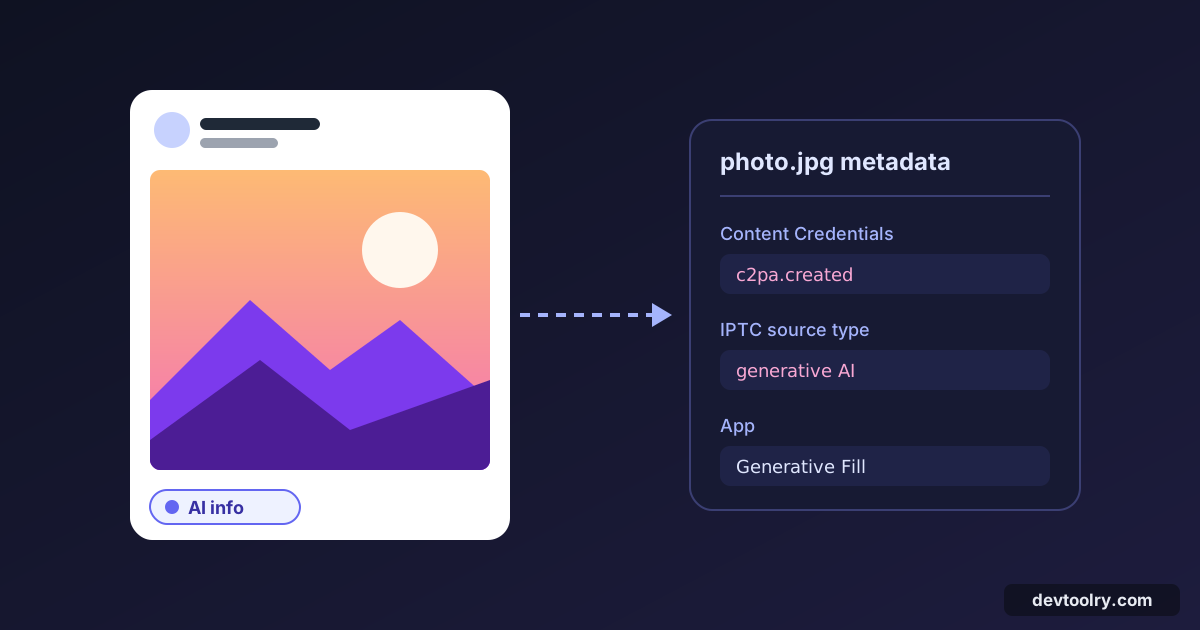
Instagram's AI info label comes from metadata your editing app writes: C2PA Content Credentials and the IPTC source type. What triggers it and how to check.
 By Avinash KoriPublished 6 min read
On this page
You took the photo yourself, on your own camera. You removed a stray cable with one brush stroke, posted it, and Instagram put "AI info" on it. To your followers that reads like "this picture is fake".
The label is not a judgement of your photo. In most cases it comes from a few bytes of metadata that your editing app wrote into the file, which Instagram reads when you upload. This article explains what Meta has said about the label, which fields trigger it, why real photos end up with it, and how to check a file before you post it.
The short answer
Instagram, Facebook and Threads add "AI info" in two situations:
- The file says AI was used. Meta has said it reads the "AI generated" information in two industry standards: C2PA (Content Credentials) and IPTC metadata. Image generators and many editors write these fields automatically.
- You said AI was used. If you switch on the AI label when posting, the post is labelled whatever the file says.
Meta has also said that images made with its own Meta AI carry invisible watermarks, so some images are recognised from their pixels and not only from metadata.
What Meta has said, and when
The rules changed several times in 2024, which is why older articles disagree with each other:
| Date | What changed |
|---|---|
| 6 February 2024 | Meta announces it will label images from Google, OpenAI, Microsoft, Adobe, Midjourney and Shutterstock using "AI generated" information in the C2PA and IPTC standards. |
| 5 April 2024 | The "Made with AI" label is announced, based on industry-shared signals or the uploader's own disclosure. |
| 1 July 2024 | "Made with AI" is renamed "AI info", after photographers complained about labels on lightly retouched photos. |
| 12 September 2024 | For content Meta detects was only edited with AI, the label moves into the post's menu. Content detected as generated by AI keeps the label on the post. |
The sources are Meta's own announcements: labeling AI-generated images and its approach to labeling AI-generated content, which carries the July and September updates.
The metadata that triggers it
Two kinds of metadata can carry an AI declaration.
Content Credentials (C2PA)
C2PA is a standard for a signed record of how a file was made: which app or camera created it, what was done to it, and with which tools. Adobe apps, image generators and some cameras write it. In a JPEG it sits in APP11 segments, in a PNG in a caBX chunk.
Inside the record, each action can carry a digital source type. An action like c2pa.created with the source type trainedAlgorithmicMedia says, in so many words, "this image was created by generative AI".
The IPTC digital source type
The same vocabulary also exists as a plain metadata field, written in the XMP block of the file. Here is the kind of XMP an editor writes after a generative edit:
<rdf:Description
  Iptc4xmpExt:DigitalSourceType="http://cv.iptc.org/newscodes/digitalsourcetype/compositeWithTrainedAlgorithmicMedia"
  xmp:CreatorTool="Adobe Photoshop 26.0 (Windows)"/>
Google Photos uses this route: since October 2024 photos edited with Magic Editor, Magic Eraser or Zoom Enhance carry IPTC metadata saying "Edited with Google AI", which the app shows in an "AI info" section of the photo's details.
The values that matter
The IPTC keeps the list of digital source types. Only a few say "generative AI":
| Value | IPTC name | What to expect on Meta apps |
|---|---|---|
trainedAlgorithmicMedia | Created using generative AI | "AI info" on the post |
compositeWithTrainedAlgorithmicMedia | Edited using generative AI | "AI info" in the post menu |
compositeSynthetic | Composite including generative AI elements | Likely treated as AI |
algorithmicMedia | Pure algorithmic media | Not a generative AI declaration |
digitalCapture | Digital capture sampled from real life | No AI declared |
Why real photos get the label
Most complaints come from photographers whose pictures are real but were finished with one generative tool:
- Generative Fill and Generative Expand. Adobe says Photoshop automatically attaches Content Credentials to images made with these features when they are exported as PNG or JPG, or saved with Save As.
- Generative "remove" tools. Removing a person or a wire with a tool that fills the gap with generated pixels counts as a generative edit, even if the result looks untouched.
- Phone gallery editors. Magic Editor and similar features write the IPTC field described above.
- An edit you undid. Photoshop users report that a generative step, once used and then undone, can still be declared on export.
In all of these, the declaration is technically accurate: some pixels were generated. What the label does not tell viewers is how much. A whole fake scene and a removed cable produce the same field.
How to check a file before you post it
You can see exactly what a file declares in a few seconds:
- Open the AI Label Checker and drop in the exact file you are going to upload (not the original, not a screenshot of it).
- Read the verdict. For the XMP shown above, the checker reports:
Likely to get an "AI info" note in the post menu
Edited using generative AI Menu note XMP (IPTC digital source type)- To see every field (EXIF, XMP, IPTC, the apps listed in the Content Credentials and their actions), open the same file in the EXIF Viewer.
Both run in your browser, so the file is not uploaded anywhere. Keep in mind what a metadata check cannot see: invisible watermarks in the pixels, and your own disclosure when you post.
What to do if your photo is labelled wrongly
If generative AI did not change what the picture shows, fix the file at the source:
- Re-export from the original without the generative step. Use a non-generative healing or clone tool for small fixes.
- Check your editor's Content Credentials settings, and remember that some apps attach them automatically whenever a generative feature was used.
- Check the result with the AI Label Checker before you upload it.
If you also want to remove your location, camera serial number and other personal details before sharing, Remove EXIF Data strips all metadata without re-compressing the photo. That is a privacy step, and it removes Content Credentials along with everything else.
What stripping metadata does not do
Some sites sell "AI label removers" that simply delete these fields. There are good reasons not to treat that as a fix:
- It does not remove invisible watermarks. Meta has said its own AI images carry them, and Google adds SynthID to images from its models. These live in the pixels.
- It does not change the rules. Meta requires a disclosure for realistic video and audio that was digitally created or altered, and says it may apply penalties when people do not disclose. YouTube asks creators to disclose realistic altered or synthetic content too.
- It removes the proof that helps you. Content Credentials are also how a real camera photo can show where it came from. YouTube, for example, shows "Captured with a camera" for videos with an unbroken C2PA record from a supporting camera.
If an image was made with AI, the label is correct, and keeping it is the honest choice. If your photo is real, the better fix is a file that never declared AI in the first place.
Summary
- "AI info" on Instagram and Facebook mostly comes from metadata your apps write: C2PA Content Credentials and the IPTC digital source type.
trainedAlgorithmicMediameans "created with generative AI" and puts the label on the post.compositeWithTrainedAlgorithmicMediameans "edited with generative AI" and, since September 2024, puts it in the post's menu.- Real photos get the label after Generative Fill, generative remove tools or phone AI edits, even small ones.
- Check the exact file you post with the AI Label Checker, and re-export without the generative step if the label would be wrong.

Written by
Avinash Kori
Founder of Devtoolry
Avinash is a full-stack web developer from Surat, India, with eight years of experience in PHP, Laravel and Angular. He built Devtoolry so developers can solve everyday problems quickly with free tools that run entirely in the browser, and writes practical guides on the formats, encodings and techniques behind them.
Connect on LinkedInTry it yourself
The free tools used in this article. They run in your browser, so nothing you paste is uploaded.
AI Label Checker
See which metadata makes Instagram, Facebook or Threads show "AI info": C2PA Content Credentials, IPTC source type, AI app names and prompts. No upload.
EXIF Viewer
See the hidden data in a photo: GPS location, camera, date, serial numbers, XMP and AI prompts, in plain words. Works on JPEG, PNG and WebP without uploading.
Remove EXIF Data
Remove EXIF data, GPS location and other metadata from photos in bulk without losing quality: pixels stay identical. JPEG, PNG and WebP; nothing is uploaded.