What Is This Website Built With? 4 Ways to Find Out
How to find out what a website is built with: the CMS or site builder, framework, hosting, CDN and analytics, from page source, headers or a free checker.
 By Avinash KoriPublished 4 min read
On this page
You find a website you like and want to know what it runs on. Maybe you are choosing a platform for your own site, sizing up a competitor, or pitching a client and need to know if they use WordPress or Shopify. The good news: almost every website gives away what it is built with. The software leaves traces in the page's HTML, in the response headers and in its cookies, and you can read them in a minute.
This guide shows four ways to find out, from the quickest to the most thorough. The fastest is to paste the address into our Website Technology Checker, which matches a page against about 100 fingerprints and shows the evidence for each result.
Method 1: use a technology checker
A technology checker loads the page and looks for known traces for you. Enter any page of the site (the home page usually reveals the most) and you get a list grouped by category:
- CMS and site builders: WordPress, Shopify, Wix, Squarespace, Webflow
- JavaScript frameworks: Next.js, Nuxt, React, Vue.js
- Analytics and tag managers: Google Analytics, Google Tag Manager
- CDN and hosting signals: Cloudflare, Vercel, Netlify
- Ads, chat and payment scripts
Our checker shows the evidence behind each result, such as a header, a script path or a meta tag, so you can judge how sure it is. Browser extensions like Wappalyzer and BuiltWith's lookup use the same method. If the result says WordPress, the WordPress Theme Detector goes one step further and names the theme and the plugins that load on the page.
Method 2: read the page source
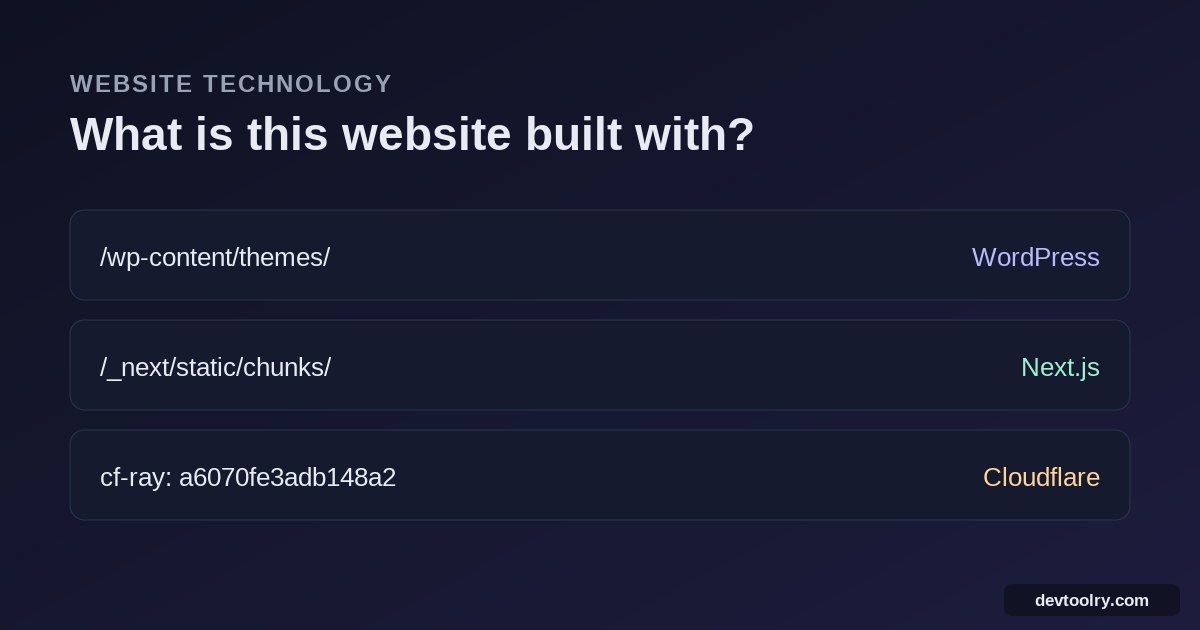
You can do the same detective work yourself. Open the page, press Ctrl+U (Cmd+Option+U on a Mac) to view the source, and search it with Ctrl+F for these traces:
| What you find in the source | What it usually means |
|---|---|
/wp-content/ or /wp-includes/ | WordPress |
<meta name="generator" content="WordPress 6.8"> | WordPress, with its version |
cdn.shopify.com | Shopify |
static.wixstatic.com or a generator tag "Wix.com Website Builder" | Wix |
static1.squarespace.com | Squarespace |
data-wf-page attributes or a generator tag "Webflow" | Webflow |
/_next/static/ | Next.js |
/_nuxt/ | Nuxt |
googletagmanager.com/gtag/js?id=G- | Google Analytics 4 |
The generator meta tag is the quickest win when it is there, but many sites remove it. Asset paths such as /wp-content/ are harder to hide, because the site needs them to load its images, styles and scripts.
WordPress sites also answer on a few well-known addresses: /wp-json/ returns the REST API index, and /wp-login.php shows the login form. Trying those in the browser is a quick second opinion.
Method 3: check the response headers
Servers and CDNs add their own headers to every response. Open the browser's developer tools (F12), go to the Network tab, reload the page, click the first request and look at Response Headers. Or run:
curl -sI https://example.com/Headers worth looking for:
server: cloudflareand acf-rayheader: the site sits behind Cloudflare.x-vercel-id: hosted on Vercel.server: Netlifyorx-nf-request-id: hosted on Netlify.x-powered-by: PHP/8.2orx-powered-by: Express: the server language or framework, when the server has not hidden it.- Headers starting with
x-nextjs-: a Next.js site.
For example, our own home page answers with server: cloudflare, a cf-ray header and x-nextjs-cache: HIT. Those three lines say that Devtoolry runs on Next.js behind Cloudflare, which is correct.
Cookies tell a similar story. A PHPSESSID cookie points to PHP, wordpress_ cookies to WordPress and _shopify_ cookies to Shopify. In developer tools, they are under Application (Chrome) or Storage (Firefox).
Method 4: find the host and the domain owner
The platform is only half the picture. To see who hosts the site, look up the IP address its domain points to and the network that owns it. The Website Hosting Checker does this in one step. When the site uses Cloudflare or another CDN, you will see the CDN, not the real server, because the CDN hides it on purpose.
To see who owns the domain and when it was registered, use a WHOIS Lookup. Many owners use privacy protection, but the registrar and the dates are always public.
Why detection is sometimes wrong
Every method above reads traces, and traces can be hidden or missing:
- Removed signatures. Security plugins strip the generator tag, rename folders and drop headers such as
x-powered-by. - Pages built in the browser. A single-page app may send an almost empty HTML page and build the rest with JavaScript, so a raw fetch sees very little.
- Headless setups. A site can use WordPress or Shopify only as a back end, behind a Next.js front end. You will see Next.js on the page and no trace of the CMS.
- CDNs in front. The CDN replaces the server's headers with its own.
So treat the result as strong evidence, not proof. When it matters, check the evidence for each item and try a second page, such as a blog post or a product page.
What to do with the answer
Knowing a site's stack is useful beyond curiosity. If you are picking a platform, check what the leading sites in your niche use. If you are auditing a competitor, combine the stack with its speed in the Page Speed Checker and its security headers in the Security Headers Checker. If you sell to websites, a list of sites on a given platform is a ready-made prospect list.
Summary
To find out what a website is built with, paste it into a technology checker, or look for the traces yourself: asset paths and the generator tag in the page source, server and x- headers in the response, and cookie names. Add a hosting and WHOIS lookup for the infrastructure behind it. Hidden signatures, headless setups and CDNs can mask the real stack, so check the evidence and test more than one page.

Written by
Avinash Kori
Founder of Devtoolry
Avinash is a full-stack web developer from Surat, India, with eight years of experience in PHP, Laravel and Angular. He built Devtoolry so developers can solve everyday problems quickly with free tools that run entirely in the browser, and writes practical guides on the formats, encodings and techniques behind them.
Connect on LinkedInTry it yourself
The free tools used in this article. They run in your browser, so nothing you paste is uploaded.
Website Technology Checker
Find out what any website is built with: CMS, ecommerce platform, JavaScript framework, analytics, CDN, hosting and web server, detected from its HTML and headers.
WordPress Theme Detector
See which WordPress theme a site uses: theme name, version, author and parent theme from its style.css, plus the plugins the page loads.
Website Hosting Checker
Find who hosts any website: its IP addresses, the network and company behind them (ASN), CDN, country, name servers and mail servers.