How to Check and Test a robots.txt File on Any Website
How to check the robots.txt of any website, test whether a URL is blocked for Googlebot, test a draft before you upload it, and read Search Console's report.
 By Avinash KoriPublished 5 min read
On this page
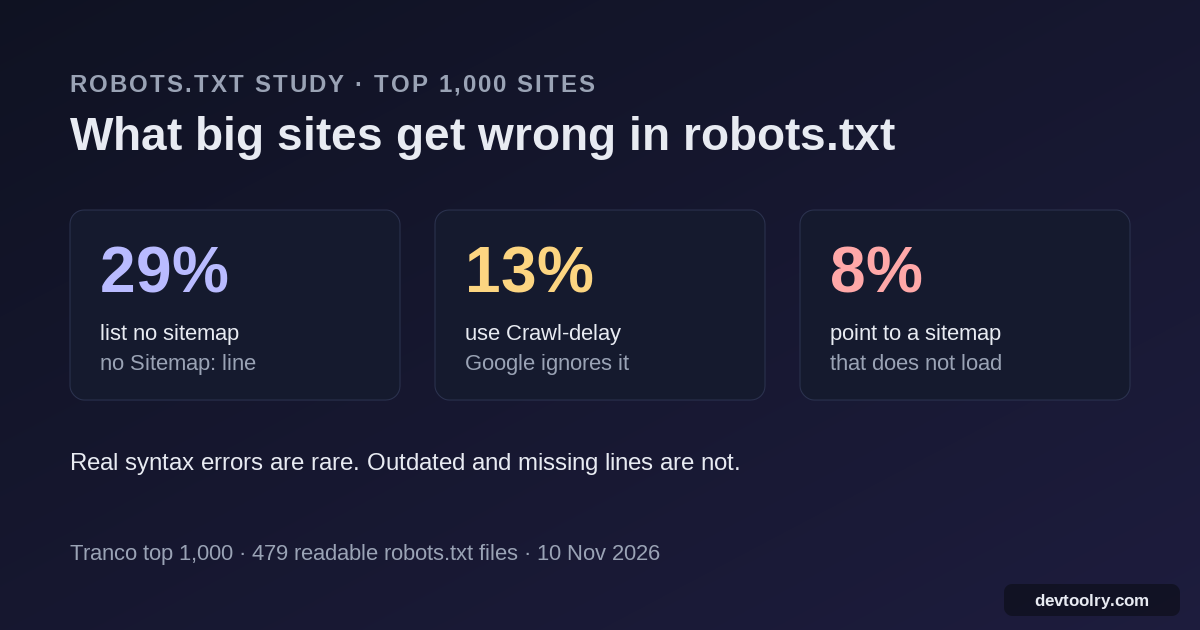
A robots.txt file decides which parts of a site search engines may crawl, and a single wrong line can hide a whole section from Google. Checking it takes a few minutes, but most people only look when traffic has already dropped. This guide shows how to check the robots.txt of any website, how to test whether a specific URL is blocked, how to test a new file before it goes live, and how to confirm what Google itself has read.
You can follow every step with the free Robots.txt Checker. It fetches the file, reports errors and tests URLs the way Google matches them.
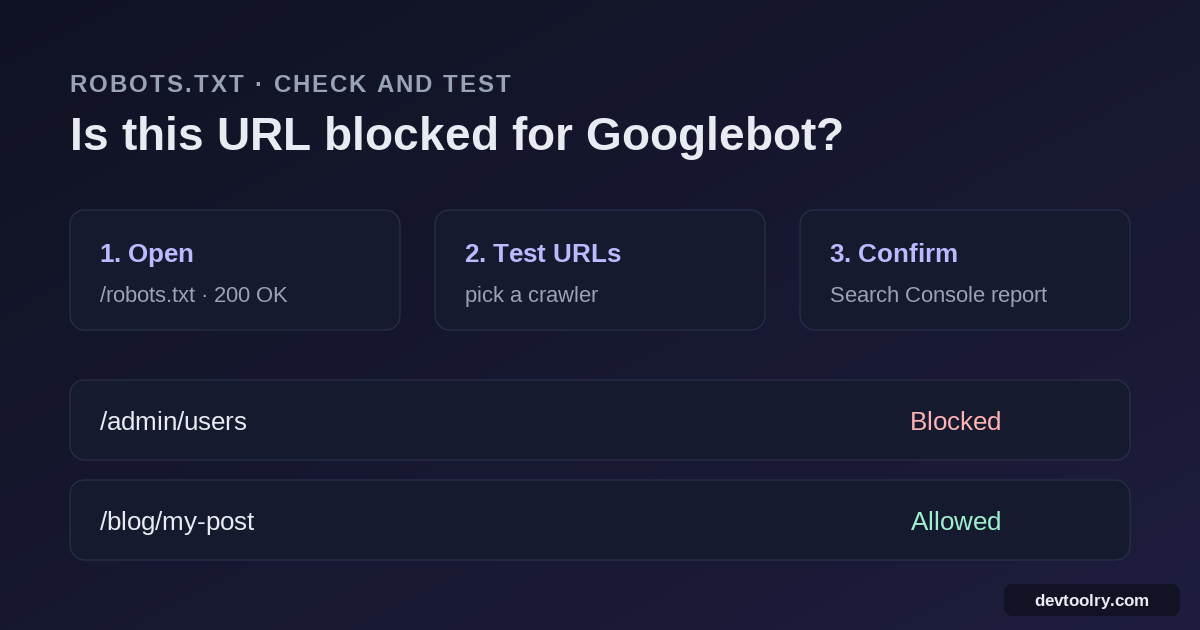
Step 1: open the robots.txt file
Every site keeps its robots.txt file at the root of the host. To see it, add /robots.txt to the domain:
https://example.com/robots.txtThree details trip people up:
- Each host has its own file.
https://shop.example.com/robots.txtandhttps://example.com/robots.txtare separate, and rules in one do not apply to the other. The same is true forhttpandhttps, and for a non-standard port. - A file in a subfolder is ignored.
https://example.com/blog/robots.txtdoes nothing; crawlers only ask for the root. - WordPress and other platforms serve a virtual file. You may not find
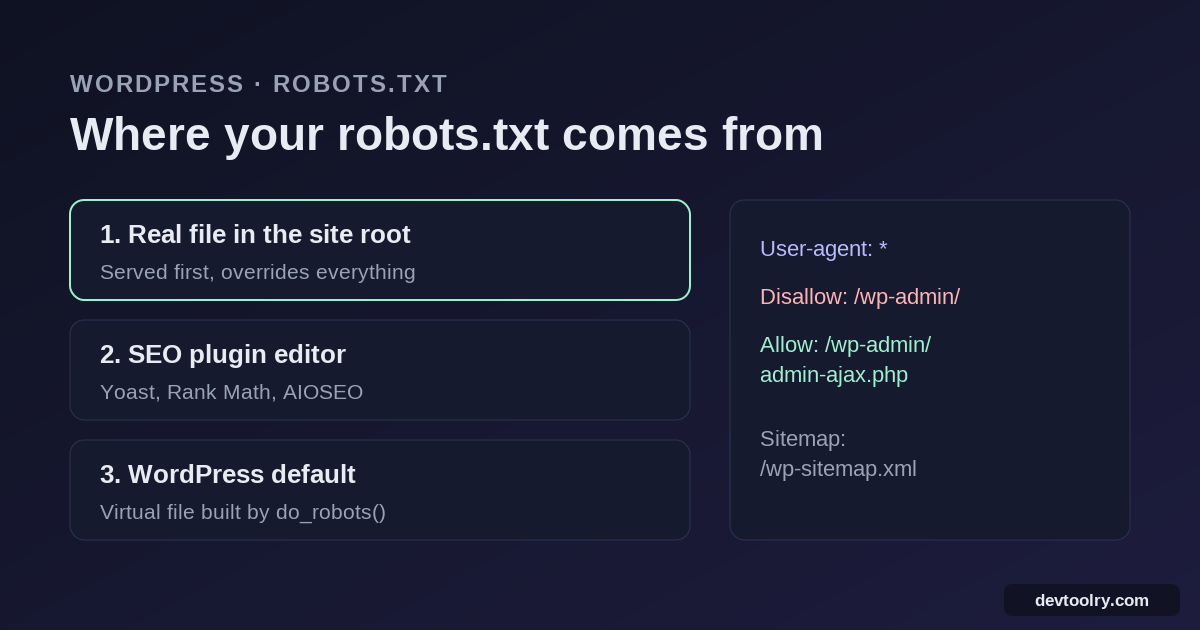
robots.txton the server at all, yet the URL still answers. Our WordPress robots.txt guide explains where that file comes from and how to edit it.
Seeing the file in a browser tells you what it says, but not how the server delivers it. That matters just as much.
Step 2: check how the server answers
Crawlers react to the HTTP status of robots.txt before they read a single rule:
| Response | What Google does |
|---|---|
| 200 OK | Reads the file and follows its rules |
| 404 or 410 | Treats the site as having no rules: everything may be crawled |
| 429 or 5xx | Treats the whole site as blocked and stops crawling until the file answers normally |
| Redirect | Follows up to five redirects, then treats the file as missing |
A server error is the dangerous case. A missing file is harmless for most sites, but a robots.txt that returns 500 for a few days can stop Google crawling everything. Google also reads only the first 500 KiB of the file, and a file served as an HTML page (a common result of a catch-all route) produces nonsense rules.
To see the status yourself, run:
curl -sI https://example.com/robots.txtThe first line shows the status and the content-type line should say text/plain. The Robots.txt Checker's Live site mode does the same and flags each problem in plain words.
Step 3: test whether a URL is blocked
Reading the rules by eye is where mistakes happen, because robots.txt matching has a few non-obvious rules:
- A crawler follows one group only: the
User-agentgroup that matches it most specifically. If a file has aUser-agent: Googlebotgroup, Googlebot ignores everything underUser-agent: *. - A rule matches from the start of the path.
Disallow: /adminblocks/admin,/admin/usersand/administrator, but not/blog/admin. - Paths are case-sensitive:
Disallow: /Admindoes not block/admin. - When an
Allowand aDisallowboth match, the longer rule wins, andAllowwins a tie. *matches any characters and$marks the end of the URL, soDisallow: /*.pdf$blocks PDFs but not/file.pdf?download=1.
So instead of guessing, test the exact URL. In the Robots.txt Checker, paste one or more URLs into the tester under the result and pick a crawler, such as Googlebot or Bingbot. Each URL shows Allowed or Blocked and the line that decided it. If you need copy-ready rules to compare against, our robots.txt examples cover the common cases, from blocking a folder to blocking AI training crawlers.
Step 4: test a new robots.txt before you upload it
The safest time to test is before the file is live. Switch the checker to Paste mode and paste your draft (or drop the file). It validates the syntax, shows which crawlers are blocked and lets you test URLs against the draft, all in your browser. Run your most important pages through it: the home page, a product or article page, your CSS and JavaScript folders, and the sitemap URL.
If you are writing a file from scratch, the Robots.txt Generator builds one from a form and tests it as you go.
Step 5: confirm what Google has read
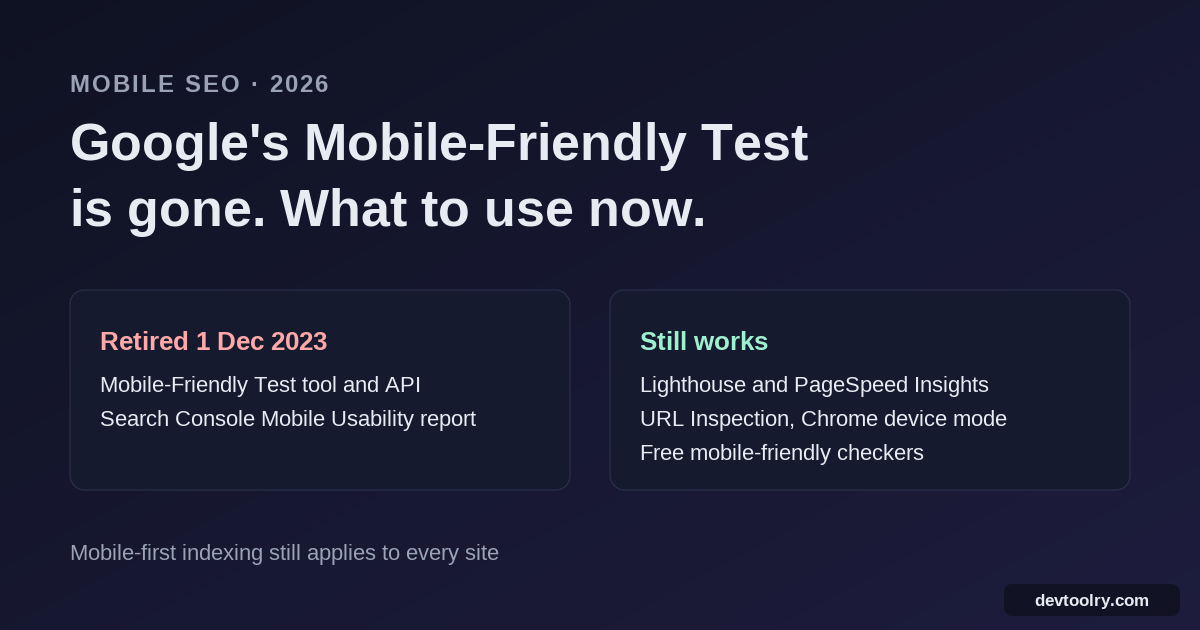
Google retired its old robots.txt Tester at the end of 2023. Its replacement in Search Console is the robots.txt report, under Settings. It shows:
- the robots.txt files Google found for your property and when each was last fetched,
- the fetch status (fetched, not fetched, not found),
- any lines Google could not parse.
If you have just fixed a mistake, use Request a recrawl in that report. Google caches robots.txt for up to 24 hours otherwise.
The report cannot test individual URLs. For one page, use the URL Inspection tool: if crawling is blocked, it says so under "Crawl allowed?". In the Page indexing report, two statuses point to robots.txt:
- Blocked by robots.txt: Google has not crawled the URL because a rule blocks it.
- Indexed, though blocked by robots.txt: Google indexed the URL from links without reading it, so it shows in results with no description.
How to fix a URL blocked by robots.txt
First decide whether the block is intended. Many blocks are correct: internal search results, cart and checkout pages, filter URLs. If the page should rank:
- Find the rule that blocks it (the tester shows the exact line).
- Remove or narrow that rule, or add a longer
Allowrule for the page. - Test the new file in Paste mode, upload it and check it in Live site mode.
- Request a recrawl of robots.txt in Search Console, then inspect the URL and request indexing.
If you want a page out of Google, robots.txt is the wrong tool: a blocked page can still be indexed from links, and Google cannot see a noindex tag on a page it may not crawl. Allow crawling and use noindex instead. Our guide to pages blocked by robots.txt explains when each one fits, and the Canonical & Noindex Checker confirms the tag is in place.
See the page the way Googlebot does
A robots.txt check tells you whether Google may fetch a page. It does not tell you what Google gets back. The Googlebot Simulator requests a page with Googlebot's user agent and shows the status, redirects, robots meta tags and the HTML that comes back, which catches sites that serve crawlers something different from visitors.
Summary
To check robots.txt, open /robots.txt on the exact host, confirm it returns 200 as plain text, and test real URLs instead of reading the rules by eye. Test every change in a draft before uploading it, then confirm in Search Console's robots.txt report and request a recrawl. Remember that robots.txt controls crawling, not indexing: use noindex to keep a page out of results.

Written by
Avinash Kori
Founder of Devtoolry
Avinash is a full-stack web developer from Surat, India, with eight years of experience in PHP, Laravel and Angular. He built Devtoolry so developers can solve everyday problems quickly with free tools that run entirely in the browser, and writes practical guides on the formats, encodings and techniques behind them.
Connect on LinkedInTry it yourself
The free tools used in this article. They run in your browser, so nothing you paste is uploaded.
Robots.txt Checker
Validate a live or pasted robots.txt the way Google reads it: syntax errors, blocked pages and resources, sitemaps, 21 search and AI crawlers, and a URL tester.
Googlebot Simulator
See a page as Googlebot, Bingbot or GPTBot and as a visitor, side by side: status, redirects, title, canonical, noindex and text, to catch cloaking.
Robots.txt Generator
Create a robots.txt file with rules per crawler, sitemap links and presets for WordPress or blocking AI bots, then test any URL against it in your browser.
Canonical & Noindex Checker
Check a URL's canonical tag and Link header, robots meta, X-Robots-Tag and robots.txt, and whether the canonical target itself works, with a clear indexing verdict.