WordPress robots.txt: Where It Is, How to Edit It and What to Block
Where WordPress keeps robots.txt, what the default file says, how Yoast and Rank Math change it, how to edit it safely, and the rules worth adding or avoiding.
 By Avinash KoriPublished 6 min read
On this page
Search for "robots.txt" in a WordPress install and you won't find it. There is no file in the folder, yet https://your-site.com/robots.txt shows one. That gap causes most of the confusion: people edit a file that isn't served, install a plugin that silently replaces their rules, or tick a setting they think blocks Google and doesn't.
This guide explains where the WordPress robots.txt comes from, what the default file contains, what Yoast SEO and Rank Math change, and how to edit it without breaking anything. The behaviour described here was checked against the current source code of WordPress core, Yoast SEO and Rank Math, and every example file was tested in our Robots.txt Checker.
Where is robots.txt in WordPress?
By default it isn't a file at all. When a request for /robots.txt reaches WordPress, the core function do_robots() builds the text on the fly and sends it as text/plain. Nothing is written to disk. That's why you can't find it over FTP.
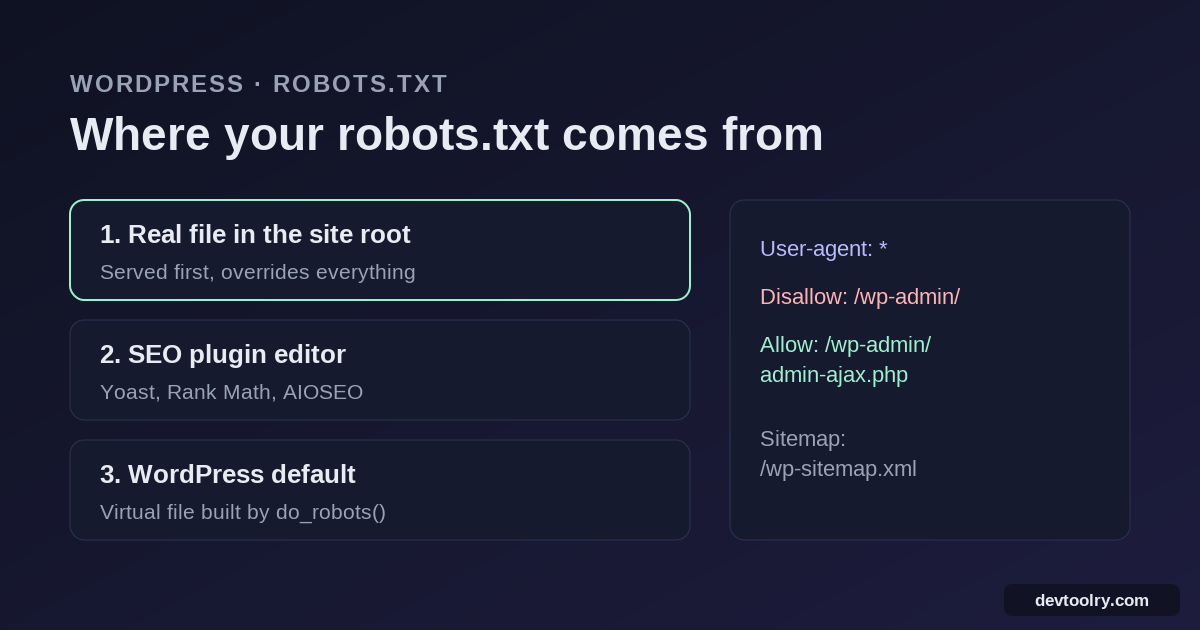
There are three possible sources, and the order matters:
- A real
robots.txtfile in the site root (the folder that holdswp-config.phpon most installs). The web server serves a real file before WordPress even starts, so it wins over everything else. - An SEO plugin's editor, which hooks into WordPress's
robots_txtfilter and changes or replaces the virtual file. - The WordPress default, when neither of the above applies.
To see which one you have, open /robots.txt in a browser. A # START YOAST BLOCK comment means Yoast is shaping it. If an FTP client or your host's file manager shows a robots.txt in the root, that file is what crawlers get, and plugin settings for robots.txt have no effect.
The default WordPress robots.txt
On a public site with WordPress's built-in sitemaps (added in version 5.5), the virtual file is:
User-agent: *
Disallow: /wp-admin/
Allow: /wp-admin/admin-ajax.php

Sitemap: https://example.com/wp-sitemap.xml
It blocks the admin area but keeps admin-ajax.php open, because themes and plugins call it from public pages. The paths come from the admin URL, so a WordPress installed in a subfolder gets Disallow: /blog/wp-admin/ instead.
This is a sensible file. Many sites never need anything else. Note that blocking /wp-admin/ doesn't hide it, since robots.txt is public; the login screen is what protects it.
What "Discourage search engines" really does
Under Settings → Reading there is a checkbox called "Discourage search engines from indexing this site". Many people believe it adds Disallow: / to robots.txt. In current WordPress it doesn't. The robots.txt keeps the same rules and only loses its Sitemap line. Instead, every page gets a noindex robots meta tag.
That's actually the better approach. A page blocked in robots.txt can still appear in Google with no description, because Google can't crawl it to see a noindex. Letting crawlers in and telling them not to index is what removes pages from results.
Two warnings follow from this:
- Don't add
Disallow: /on top of the checkbox. It stops Google from seeing thenoindextags. - Untick it when a staging site goes live. A forgotten checkbox on a launched site is one of the most common reasons a new WordPress site never gets indexed. For staging sites, a password is safer than either setting.
What Yoast SEO changes
Yoast SEO doesn't add to the default file; it replaces the core rules with its own block. With the XML sitemaps feature on, a fresh install shows:
# START YOAST BLOCK
# ---------------------------
User-agent: *
Disallow:

Sitemap: https://example.com/sitemap_index.xml
# ---------------------------
# END YOAST BLOCK
The /wp-admin/ rule is gone, and Disallow: with an empty value means "nothing is blocked". The Sitemap line now points to Yoast's sitemap index, because Yoast turns off the WordPress core sitemap when its own is active.
Yoast's crawl optimization settings can add rules to that block: one blocks internal search URLs (/?s=, /page/*/?s= and /search/), one blocks the REST API (/wp-json/ and /?rest_route=), and one blocks Google's AdsBot.
To write your own rules, go to Yoast SEO → Tools → File editor. If there is no real file yet, it offers a button to create one, which saves the current output as a real robots.txt in the site root. From then on you are editing a physical file, which overrides everything Yoast would generate. If your host doesn't let WordPress write to that folder, the button is missing or fails, and you'll need FTP instead.
How Rank Math handles robots.txt
Rank Math keeps the file virtual. Go to Rank Math → General Settings → Edit robots.txt and type the rules. Three details from its code are worth knowing:
- Your text replaces the whole file. Rank Math doesn't merge it with the WordPress default, so include the
Sitemapline yourself if you want one. - An empty field means "use the WordPress default".
- A real
robots.txtin the root disables the editor. Rank Math says so under the field: edit the real file, or delete it and edit in Rank Math.
On a site that discourages search engines, Rank Math leaves the WordPress output alone and ignores the field.
Other ways to edit it
All in One SEO has a robots.txt editor under its Tools menu, and most other SEO plugins offer something similar.
FTP or the host's file manager is the plugin-free option: create a plain-text file called robots.txt in the site root and upload it. Use a text editor, not a word processor, and save it as UTF-8. Remember that this file overrides all plugin settings from then on.
Code, for developers who want rules versioned with the theme or a small plugin, uses the same filter the plugins use:
add_filter( 'robots_txt', function ( $output, $is_public ) {
    if ( ! $is_public ) {
        return $output;
    }
    return $output . "\nUser-agent: GPTBot\nDisallow: /\n";
}, 20, 2 );
Priority 20 runs after anything that replaces the file at the default priority, such as Rank Math. A real robots.txt file still wins over this, because WordPress never runs.
A good robots.txt for most WordPress sites
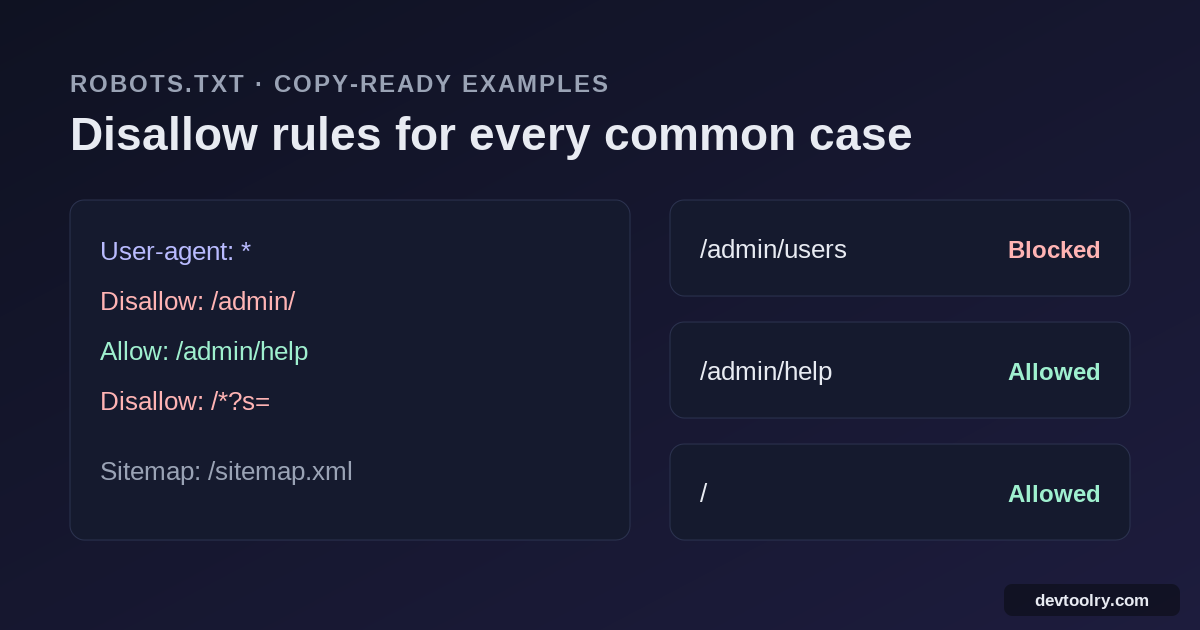
Start from the default and add rules only for a reason:
User-agent: *
Disallow: /wp-admin/
Allow: /wp-admin/admin-ajax.php
Disallow: /?s=
Disallow: /page/*/?s=
Disallow: /search/

Sitemap: https://example.com/sitemap_index.xml
The three search rules keep crawlers out of internal search results, which can produce endless thin pages. Use the sitemap URL your site really has: wp-sitemap.xml for WordPress core, sitemap_index.xml for Yoast and Rank Math. Open it once to make sure it loads.
What not to add:
Disallow: /wp-content/or/wp-includes/. Themes and plugins load CSS, JavaScript and images from there. Google renders pages like a browser, and without those files your pages can look broken to it. This was common advice years ago and still appears in old tutorials.Disallow: /feed/, unless you have a reason: feeds help some crawlers discover new posts, and they don't compete with your pages.- Rules to "remove" a page from Google. Blocking a URL stops crawling, not indexing. Use
noindexinstead (both plugins have a per-post setting). Crawl-delay. Googlebot ignores it.
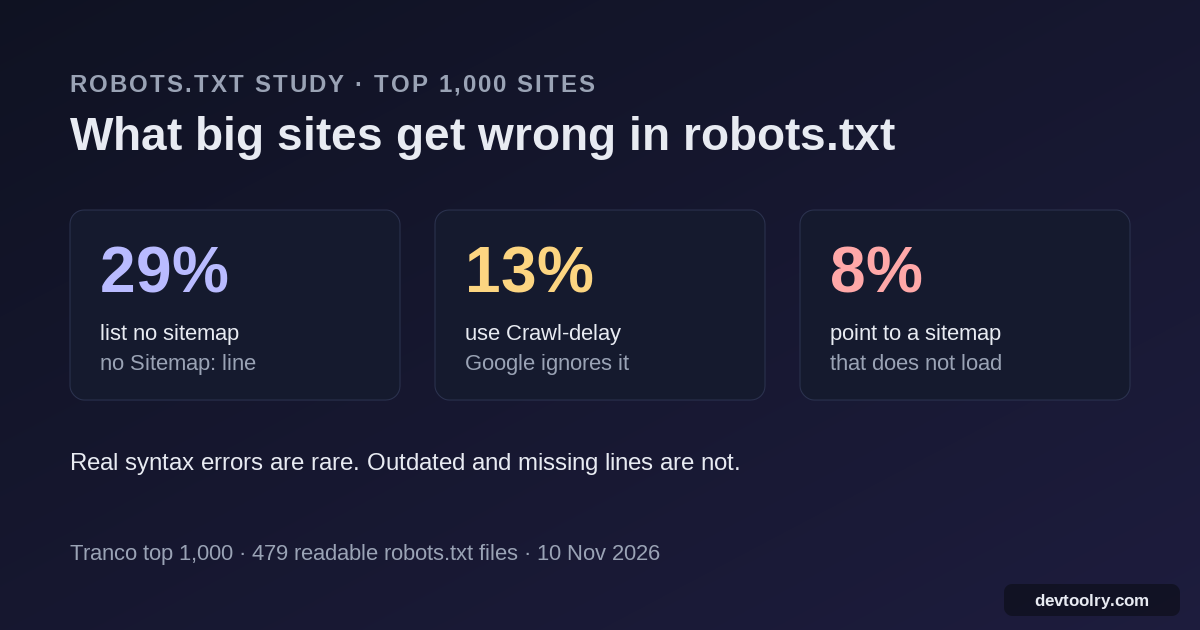
If you want to block AI training crawlers but stay in AI search answers, see the AI section of our robots.txt examples, and check the result with the AI Crawler Checker. Our study of robots.txt files on the top 1,000 sites shows which mistakes are common even on big sites.
Test it after every change
A robots.txt edit takes effect as soon as the file is served, so a typo can block a site within hours. A short routine:
- Open
/robots.txtin a private window to see what's really served. A caching plugin or a CDN can keep serving an old copy, so purge the cache if your change doesn't show. - Paste the file or enter your URL in the Robots.txt Checker. It flags syntax errors and blocked CSS or JavaScript, checks that the Sitemap lines load, and tells you whether a given page is allowed for Googlebot, Bingbot and AI crawlers.
- Check Search Console's robots.txt report a day later to confirm Google fetched the new version.
If you'd rather not write the file by hand, the Robots.txt Generator builds one from a few choices, and you can paste the result into Yoast, Rank Math or a real file.
Summary
WordPress builds robots.txt on the fly unless there is a real file in the site root, which always wins. The default blocks only /wp-admin/, and that's fine for most sites. Yoast replaces it with an open block and its sitemap, Rank Math replaces it with whatever you type, and "Discourage search engines" adds noindex tags instead of blocking. Add rules only for a reason, never block /wp-content/, use noindex to keep pages out of results, and test every change before Google reads it.

Written by
Avinash Kori
Founder of Devtoolry
Avinash is a full-stack web developer from Surat, India, with eight years of experience in PHP, Laravel and Angular. He built Devtoolry so developers can solve everyday problems quickly with free tools that run entirely in the browser, and writes practical guides on the formats, encodings and techniques behind them.
Connect on LinkedInTry it yourself
The free tools used in this article. They run in your browser, so nothing you paste is uploaded.
Robots.txt Checker
Validate a live or pasted robots.txt the way Google reads it: syntax errors, blocked pages and resources, sitemaps, 21 search and AI crawlers, and a URL tester.
Robots.txt Generator
Create a robots.txt file with rules per crawler, sitemap links and presets for WordPress or blocking AI bots, then test any URL against it in your browser.
AI Crawler Checker
Check which AI crawlers a site allows: GPTBot, ClaudeBot, PerplexityBot, Google-Extended and 12 more, split into AI training, AI search and search engines.