How to Open HEIC Files on Windows (and Convert Them to JPG)
Why Windows won't open iPhone HEIC photos, the two Microsoft Store extensions that fix it, and how to convert HEIC to JPG for free without uploading anything.
 By Avinash KoriPublished 6 min read
On this page
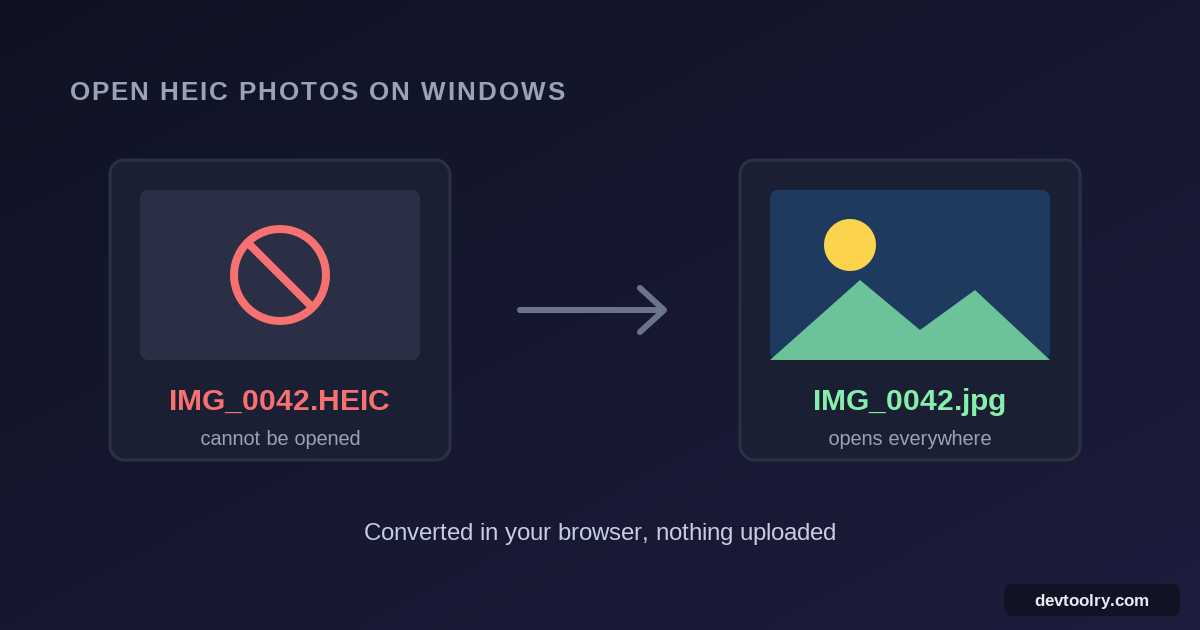
You copy photos from an iPhone to a Windows PC, double-click one, and get an error, a blank thumbnail or a message asking you to buy something from the Microsoft Store. The file ends in .heic, and Windows doesn't know what to do with it. Upload forms reject it too, and so do many older programs.
This guide explains what a HEIC file is, why Windows struggles with it, and three ways to deal with it: install the right extensions, convert the photos to JPG in your browser, or tell your iPhone to stop making HEIC files in the first place. The conversion route takes under a minute for a whole album and needs nothing installed.
What is a HEIC file?
HEIC is the format iPhones and iPads use for photos by default since iOS 11 in 2017. The name stands for High Efficiency Image Container. It is a HEIF container (the High Efficiency Image File Format, a standard from the MPEG group) holding a picture compressed with HEVC, also called H.265, the same codec many phones use for video.
The point of it is size. Apple says a HEIC photo takes about half the space of a JPEG of similar quality, which matters when a phone takes thousands of 12-megapixel pictures. A HEIC file can also hold more than one image: the photo, a depth map for Portrait mode, a smaller preview and the image's orientation.
The cost of that efficiency is compatibility. JPEG has been readable everywhere for decades; HEIC needs an HEVC decoder, and HEVC is covered by patents that software makers pay licence fees for. That is the whole reason Windows doesn't simply open it.
Why Windows won't open HEIC photos
Windows needs two pieces from the Microsoft Store to show a HEIC photo:
| Component | What it does | Price |
|---|---|---|
| HEIF Image Extensions | Reads the HEIF container | Free, preinstalled on Windows 11 |
| HEVC Video Extensions | Decodes the HEVC-compressed picture inside | $0.99 |
The first is free and usually already there. The second is the one most people are missing, and it is the reason the Photos app asks you to visit the Store. Some PC makers include a free "HEVC Video Extensions from Device Manufacturer" package, but it isn't offered on every machine.
Without the HEVC part, Windows can see that the file is an image but can't decode the pixels. That's why thumbnails stay blank in File Explorer even though the file is fine.
Browsers have the same problem for the same reason. Safari on a Mac or iPhone shows HEIC photos, because Apple licenses HEVC for its own systems. Chrome, Edge and Firefox don't display HEIC, so dragging the file into a browser tab just downloads it again.
Option 1: install the HEVC extension
If you deal with iPhone photos every day on the same PC, installing the extension is the most convenient fix:
- Open the Microsoft Store and search for HEVC Video Extensions.
- Buy and install it (check that HEIF Image Extensions is installed too).
- Restart File Explorer or sign out and back in. Thumbnails and the Photos app now show HEIC files.
This lets you view the photos. It doesn't make them JPGs, so websites, email recipients and older programs still can't use them. For that you still need to convert them.
Option 2: convert HEIC to JPG in your browser
The quickest way to get files that work everywhere is to convert them. Our HEIC to JPG converter does it in the browser on any computer, including Windows PCs with no extensions installed:
- Open the converter and drop your
.heicfiles onto it, or choose them. A whole folder at once is fine. - Keep JPEG (or pick PNG or WebP) and leave the quality at 90.
- Download each photo, or use Download all to get them in one ZIP file.
Chrome and Edge can't decode HEIC themselves, so the converter brings its own decoder: libheif, an open-source HEIF library, compiled to WebAssembly and loaded once (about 1.5 MB). The photos never leave your computer. Nothing is uploaded, which matters for personal photos; you can check the Network tab in your browser's developer tools while it runs.
On a four-core laptop, decoding a 12-megapixel HEIC takes well under a second, so an album of 100 photos takes a couple of minutes.
Two things to know about the result:
- The JPG is bigger than the HEIC. That's expected: JPEG compresses less efficiently. At quality 90 the photos look the same; if a form needs a small file, run the JPGs through the Image Compressor afterwards, as described in how to compress an image to 20 KB.
- Location and camera data are not copied. The converted file is a new image drawn by your browser, so the GPS position, the camera model and the date taken are left out. That's safer when you share the photos, but photo apps that sort by date taken will use the download date instead.
The converted photos also open in every other tool on the site, so you can resize them to exact pixels or straighten them with Rotate Image in the same browser tab.
Option 3: stop your iPhone from making HEIC files
If you'd rather never see a HEIC file again, change two iPhone settings:
- Settings › Camera › Formats › Most Compatible. New photos are saved as JPEG (and videos as H.264). Photos you already took stay HEIC.
- Settings › Photos › Transfer to Mac or PC › Automatic. When you copy photos to a computer over a cable, the iPhone converts them to JPEG on the way. "Keep Originals" copies the HEIC files as they are.
"Most Compatible" makes each photo roughly twice as large, so the iPhone's storage fills faster. A middle ground is to keep HEIC on the phone and rely on the Automatic transfer setting, or convert only the photos you need to share.
Sharing from the iPhone itself often converts too: Mail and most messaging apps send JPEGs. That's why a photo you emailed to yourself opens fine, while the same photo copied over a cable doesn't.
On a Mac or an Android phone
Macs open HEIC natively. To get a JPG, open the photo in Preview, choose File › Export, set the format to JPEG and save. For many files at once, select them all in Preview and export together, or drop them into the browser converter.
Android has supported HEIF since Android 9, so gallery apps usually open photos sent from an iPhone. Many websites and apps on Android still don't, though, and the converter works in Chrome on Android as well.
Common problems
I renamed the file from .heic to .jpg and it still won't open. Renaming changes the label, not the content. The data inside is still HEIC, so programs that check the file refuse it. Convert it instead.
There's a .mov file next to each photo. Those are Live Photos: the iPhone saves a short video next to the still picture. The converter turns the still into a JPG; the .mov is a normal video that Windows plays.
Colours look slightly different after converting. Recent iPhones shoot in a wide colour space (Display P3) and some in HDR. The JPG is a standard sRGB image, so the most saturated reds and greens and the brightest highlights can look a little calmer than on the phone's screen.
A HEIC from a Samsung or another Android phone won't convert. Many Android phones can also save HEIF. Those files usually use HEVC too and convert the same way; a file that holds a burst or an animation converts only its main image.
Which format should you convert to?
JPEG is the safe default for photos: every website, printer and program accepts it. Choose PNG only if you need a lossless copy and don't mind files several times larger. WebP is smaller than JPEG and works on the web, but some older desktop programs still can't open it.
Whatever you pick, keep the HEIC originals in your iPhone or iCloud library. They hold the full quality, the date and the location, and you can always convert them again.

Written by
Avinash Kori
Founder of Devtoolry
Avinash is a full-stack web developer from Surat, India, with eight years of experience in PHP, Laravel and Angular. He built Devtoolry so developers can solve everyday problems quickly with free tools that run entirely in the browser, and writes practical guides on the formats, encodings and techniques behind them.
Connect on LinkedInTry it yourself
The free tools used in this article. They run in your browser, so nothing you paste is uploaded.
HEIC to JPG
Convert HEIC photos from your iPhone to JPG, PNG or WebP online, many at once. Works in Chrome, Edge and Firefox on Windows and Android; nothing is uploaded.
Image Compressor
Compress JPG, PNG and WebP images online to an exact size like 20 KB, 50 KB or 100 KB for upload forms, or by quality. Images never leave your browser.
Image Resizer
Resize images online to exact pixels, a percentage or presets like 1200×630 for Open Graph. Crop to fill, pad or stretch, in batches, without uploading.