How to Convert an APK to an AAB (Android App Bundle) for Google Play
Why Google Play wants an .aab instead of an .apk, what changes inside the file, three ways to convert, how to sign the bundle and the upload errors to avoid.
 By Avinash KoriPublished 6 min read
On this page
You built an Android app years ago, or a client handed you an .apk, and now Google Play refuses it: the Play Console asks for an Android App Bundle, a file ending in .aab. Renaming the file doesn't work, because an AAB is not just an APK with a different extension. The resources inside are stored in a different format and the files sit in different folders.
This guide explains what actually changes between the two formats, the three ways to get an AAB (from the project, from the APK in your browser, or with Google's command-line tools), how to sign it, and the Play Console errors people hit on their first upload.
Why Google Play wants an AAB, not an APK
Since August 2021, every new app on Google Play must be published as an Android App Bundle. An APK is a finished install file: every phone that downloads it gets every screen density, every language and every processor architecture in it. A bundle is a publishing format instead. Google Play reads it and generates small split APKs for each device, so a phone with an arm64 processor and an xxhdpi screen in Hindi only downloads the code, images and strings it can use.
Two consequences matter when you convert:
- Play App Signing is required. With a bundle, Google holds the key that signs the APKs it generates, and you sign your uploads with a separate upload key. For a brand-new app this is automatic. For an app that was published as an APK before, you enroll the existing app in Play App Signing in the Play Console and give Google your original signing key, so updates still install over the old version.
- The bundle must be built in release mode. Debug builds and builds marked test-only are rejected, whatever their format.
What is different inside the file
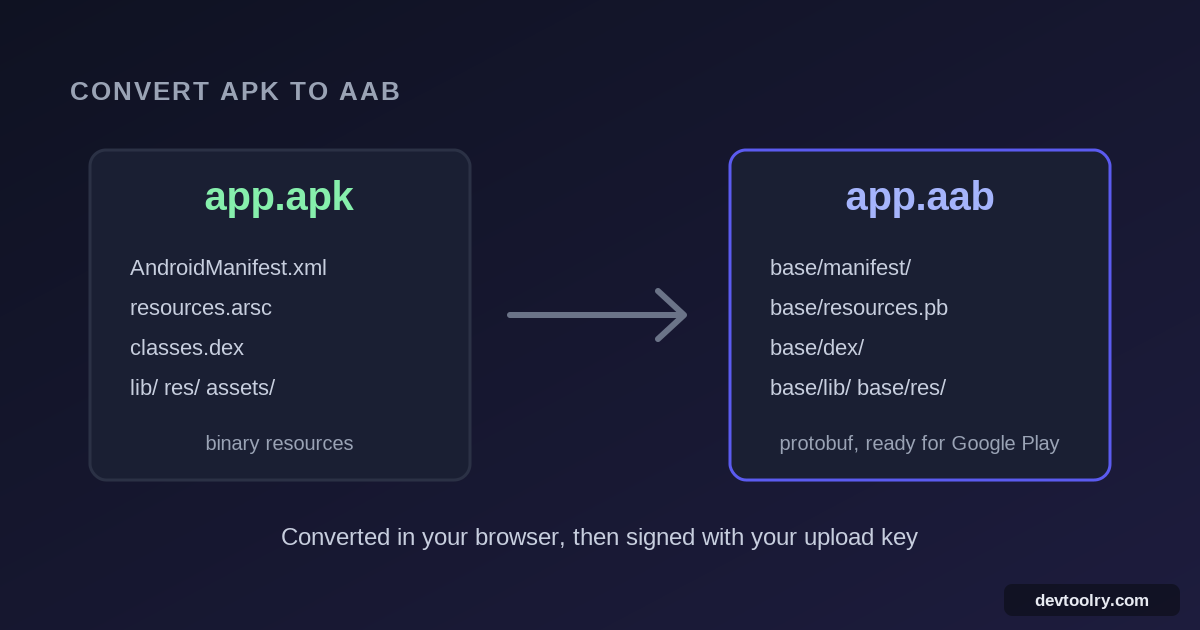
Both formats are ZIP archives, which is why renaming one looks like it might work. The contents are organised differently:
| APK | AAB | |
|---|---|---|
| Manifest | AndroidManifest.xml (binary XML) | base/manifest/AndroidManifest.xml (protobuf XML) |
| Resource table | resources.arsc (binary) | base/resources.pb (protobuf) |
| Layouts, drawables | res/ (binary XML) | base/res/ (protobuf XML) |
| Code | classes.dex, classes2.dex | base/dex/ |
| Native libraries | lib/arm64-v8a/ and others | base/lib/ |
| Other files | at the root | base/root/ |
| Bundle settings | none | BundleConfig.pb |
The difficult part is the resources. Android's build tool, aapt2, can write resources in two forms: the compact binary form that phones read, and a protobuf form that Google Play's bundletool reads to generate the split APKs. A converter therefore has to read every entry of resources.arsc and every compiled XML file and write them again as protobuf, keeping resource IDs, configurations (languages, densities, night mode) and styles exactly the same. Copying the files into new folders is the easy half.
Option 1: rebuild the bundle from the project (best)
If you still have the source code, build the bundle directly. It is the cleanest result and it keeps your release settings:
- Android Studio: Build > Generate Signed Bundle / APK, choose Android App Bundle, then pick your upload key.
- Gradle: run the release bundle task from the project folder.
- Flutter:
flutter build appbundle. - Unity: in Build Settings for Android, tick Build App Bundle (Google Play).
- React Native: run the Gradle task inside the
androidfolder.
# Gradle (Android Studio, React Native: run inside the android/ folder)
./gradlew bundleRelease

# Flutter
flutter build appbundle
The bundle appears in app/build/outputs/bundle/release/ for Gradle and in build/app/outputs/bundle/release/ for Flutter.
Option 2: convert the APK in your browser
When the project is gone, or a build machine only produced APKs, convert the APK itself with the APK to AAB Converter:
- Drop the
.apkof a release build (not a split APK from an.apksor.xapkarchive). - The converter rewrites the resource table and every compiled XML file as protobuf and moves dex files, libraries and assets into the base module. Files that were stored uncompressed in the APK, such as game data read straight from the file, are listed in
BundleConfig.pbso Google Play keeps them uncompressed too. - Read the package name, version and any warnings, and download the
.aab.
Nothing is uploaded: the conversion runs in a Web Worker in your browser. We checked it against Google's own tools on a 55 MB Unity game and a 148 MB Flutter app. aapt2's protobuf output had the same resource table and XML, and bundletool's universal APK built from the converted bundle had the same resources, manifest and file list as the original APK. The Unity game converted in under a second.
APKs built with resource path shortening (files named like res/Ab.xml) work too: those files get standard names such as res/layout/main.xml. Apps load resources by ID, so the names don't change anything at run time.
Sign the bundle
The converter's bundle is unsigned on purpose, because signing needs your private key and its password, which never need to go into a web page. Sign it on your computer with jarsigner, which comes with the JDK and Android Studio:
# Only if you have no upload key yet (keytool asks for a password and your name)
keytool -genkeypair -v -keystore upload-keystore.jks -alias upload -keyalg RSA -keysize 2048 -validity 10000

# Sign the bundle with the upload key
jarsigner -sigalg SHA256withRSA -digestalg SHA-256 -keystore upload-keystore.jks app.aab upload

# Check the signature
jarsigner -verify app.aab
A validity of 10,000 days (about 27 years) is not arbitrary: Google Play requires the key's certificate to stay valid after 22 October 2033. If the app is already on Google Play, skip the first command and sign with the upload key registered there. The APK Signature & SHA-1 Checker shows which certificate signed a file, with its SHA-1 and SHA-256 fingerprints; our guide to MD5 vs SHA-256 explains what those fingerprints are.
Test the bundle before you upload it
Two quick checks save a rejected release:
- Check it against Play's rules. The Play Store Readiness Checker reads the bundle and lists what Google Play would reject: a target API level below the current requirement, a debug build or debug key, missing 64-bit libraries, native libraries that are not ready for 16 KB memory pages, and permissions that need a declaration form.
- Install it on a phone. A phone cannot install an .aab directly. To try the app, turn the bundle into a universal APK with the AAB to APK Converter and install that, or use Google's bundletool from the command line:
bundletool build-apks --bundle=app.aab --output=app.apks --mode=universalUpload errors you might see
These are the Play Console messages people hit most often after converting, and what each one means:
- "You uploaded a debuggable APK or Android App Bundle." The APK was a debug build. Convert a release APK, or rebuild with the release variant.
- "You uploaded an APK or Android App Bundle that was signed in debug mode." The bundle was signed with the debug key that Android Studio creates on every computer. Sign it with your upload key.
- "The Android App Bundle was not signed." Run the jarsigner command above before uploading.
- "Version code 1 has already been used. Try another version code." Every upload needs a higher
versionCodethan any build uploaded before, in any track. A converter keeps the APK's number, so rebuild the APK with a higher one.
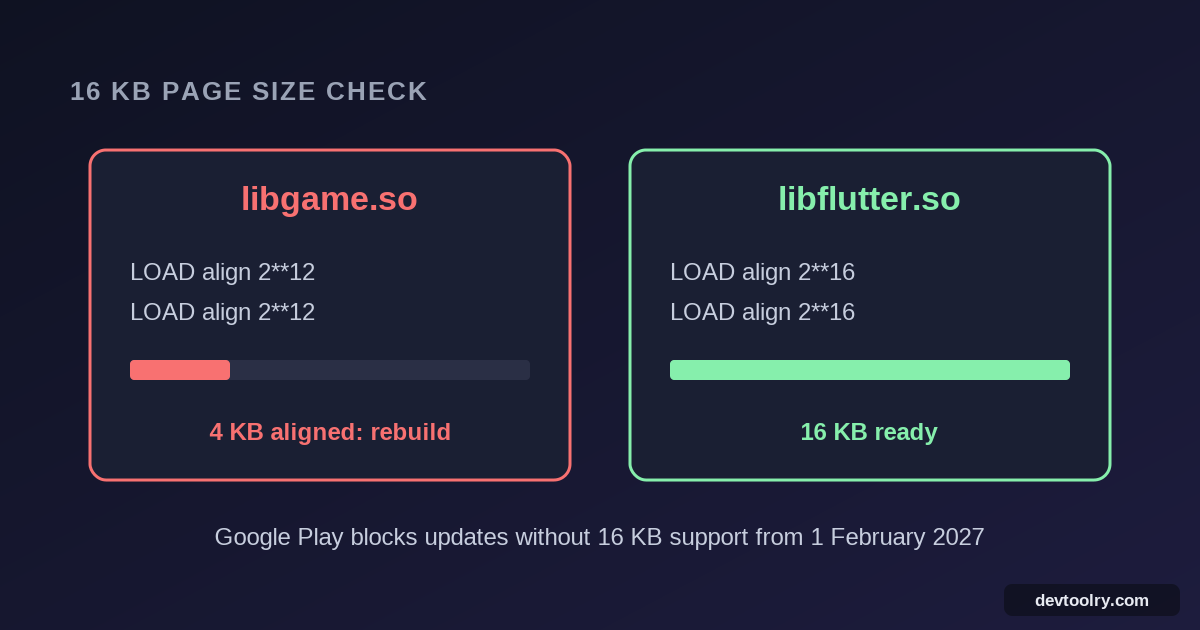
Many apps also need their native libraries checked for the 16 KB page size requirement, which blocks updates from February 2027; our guide on how to check 16 KB page size support covers that.
Convert only apps you own
Converting changes the format, not the ownership. Google Play requires every bundle to be signed with the developer's own key, so a converted copy of someone else's app cannot be published as an update to theirs, and uploading other people's apps breaks Play's policies. Use the converter for your own apps, or for apps you have the rights to publish.

Written by
Avinash Kori
Founder of Devtoolry
Avinash is a full-stack web developer from Surat, India, with eight years of experience in PHP, Laravel and Angular. He built Devtoolry so developers can solve everyday problems quickly with free tools that run entirely in the browser, and writes practical guides on the formats, encodings and techniques behind them.
Connect on LinkedInTry it yourself
The free tools used in this article. They run in your browser, so nothing you paste is uploaded.
APK to AAB Converter
Convert an APK to an Android App Bundle (.aab) online: resources are rebuilt in the aapt2 protobuf format, ready to sign and upload to Google Play. No upload.
Play Store Readiness Checker
Check an AAB or APK before you upload it to Google Play: target API level, debug builds and keys, 64-bit and 16 KB native libraries, restricted permissions.
AAB to APK Converter
Convert an Android App Bundle (.aab) to one installable APK online: resources are rebuilt and the APK is signed with a test key in your browser. No upload.
APK Signature & SHA-1 Checker
Get the SHA-1 and SHA-256 fingerprints of an APK, AAB or certificate online for Firebase and Google Sign-In, plus the Facebook key hash and signature schemes.