How to Convert Nested JSON to CSV (Flattening Explained)
Turn nested JSON into a clean CSV for Excel or Google Sheets: dotted column names, arrays, missing keys, quoting and leading zeros, with working Python code.
 By Avinash KoriPublished 5 min read
On this page
Sooner or later someone asks for "that API data in a spreadsheet". The data is JSON, nested several levels deep, with arrays inside objects. A spreadsheet is a flat grid of rows and columns. Getting from one to the other takes a few decisions, and making them deliberately is the difference between a CSV people can use and one full of [object Object].
This guide explains how flattening works, what to do with arrays, and the CSV details that trip up Excel. The examples use the JSON to CSV converter, and the same logic is shown in Python for when you need to automate it.
What flattening means
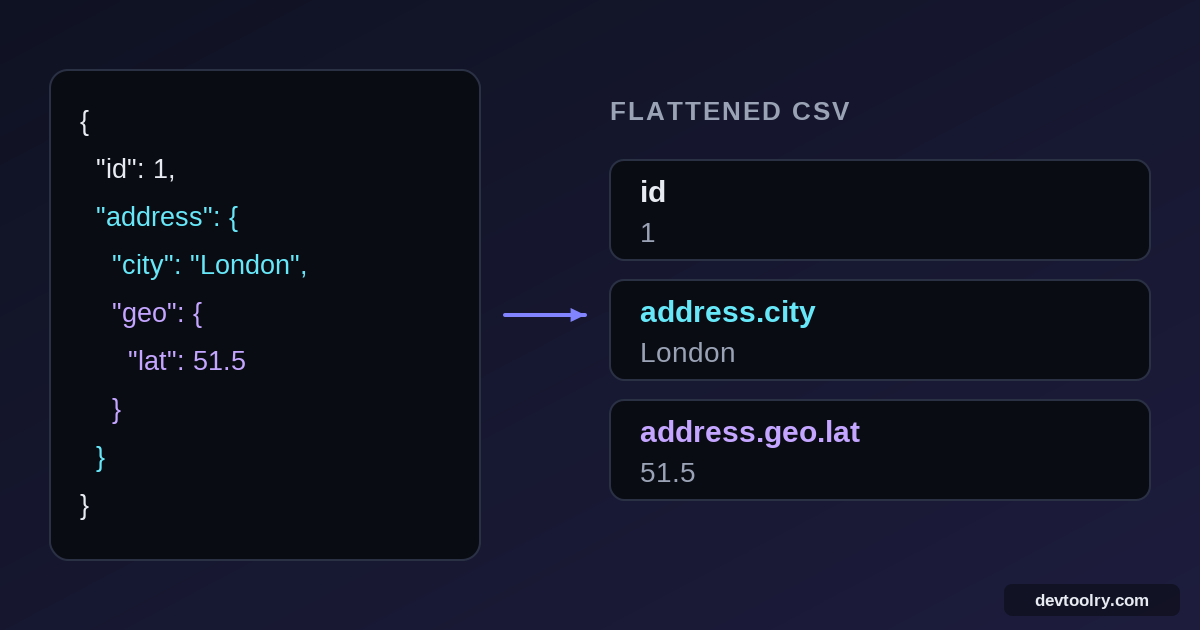
CSV has one level: each row is a record and each column is a field. JSON objects can contain other objects. Flattening turns every path to a value into a column name, joining keys with dots.
Take two user records:
[
  {
    "id": 1,
    "name": "Ada",
    "address": { "city": "London", "geo": { "lat": 51.5, "lng": -0.12 } },
    "tags": ["admin", "ops"]
  },
  {
    "id": 2,
    "name": "Grace",
    "address": { "city": "New York" },
    "tags": [],
    "note": "Says \"hi\", often"
  }
]
With flattening switched on, the converter produces:
id,name,address.city,address.geo.lat,address.geo.lng,tags,note
1,Ada,London,51.5,-0.12,"[""admin"",""ops""]",
2,Grace,New York,,,[],"Says ""hi"", often"
Four things happened here, and each one is a decision worth understanding.
- Nested objects became dotted columns.
address.geo.latis the path from the root of the record to the value. - Columns are the union of all records.
noteonly exists in the second record, but it still gets a column. Ada'snotecell is empty. - Missing values became empty cells. Grace has no
geo, so her latitude and longitude are blank, notnullorundefined. - Arrays were kept as JSON text inside a single cell, because there's no single right way to spread a list across columns.
Without flattening, the whole address object would be written as JSON text in one cell. That is lossless, but nobody can sort or filter by city in a spreadsheet.
Handling arrays: three strategies
Arrays are the hard part, because a list doesn't fit in one cell and doesn't map to a fixed number of columns. You have three options, and the right one depends on the question the spreadsheet should answer.
1. Keep the array as text in one cell. This is what the converter does by default: ["admin","ops"]. It preserves everything and keeps one row per record. It's the right choice for short lists of tags or roles. If you want a friendlier format, join them with a separator before converting, e.g. admin; ops.
2. One column per position. tags.0, tags.1, tags.2… This works only when arrays have a small, fixed size, such as coordinates or the first three phone numbers. With variable-length arrays you get dozens of mostly empty columns.
3. One row per array item. This is how databases model it, and it's the best choice when the array holds the data people care about: order lines, transactions, events. Each item becomes a row, and the parent's fields are repeated:
order_id,customer.name,sku,qty
1,Ada,A1,2
1,Ada,B7,1
2,Grace,A1,5
Now a pivot table can sum quantities per SKU, which was impossible with the items packed into one cell.
Flattening in Python
For scheduled exports you want code, not copy and paste. Python's standard library is enough:
import csv, json, sys

def flatten(obj, prefix=""):
    """Flatten nested dicts into dotted keys; lists become JSON text."""
    out = {}
    for key, value in obj.items():
        path = f"{prefix}.{key}" if prefix else key
        if isinstance(value, dict):
            out.update(flatten(value, path))
        elif isinstance(value, list):
            out[path] = json.dumps(value)
        else:
            out[path] = value
    return out

orders = [
    {"id": 1, "customer": {"name": "Ada", "city": "London"}, "items": [{"sku": "A1", "qty": 2}, {"sku": "B7", "qty": 1}]},
    {"id": 2, "customer": {"name": "Grace", "city": "New York"}, "items": [{"sku": "A1", "qty": 5}]},
]

rows = [flatten(order) for order in orders]
columns = list(dict.fromkeys(key for row in rows for key in row))  # union, in first-seen order

writer = csv.DictWriter(sys.stdout, fieldnames=columns)
writer.writeheader()
writer.writerows(rows)
Two details matter. The column list is built from every row, not just the first, so fields that appear later aren't lost. And csv.DictWriter fills missing keys with empty strings and handles quoting for you. Never build CSV lines by joining strings with commas: the first value that contains a comma or a quote breaks the file.
For the one-row-per-item layout, expand the list explicitly:
item_rows = [
    {"order_id": o["id"], "customer.name": o["customer"]["name"], **item}
    for o in orders
    for item in o["items"]
]
If you already use pandas, pandas.json_normalize(orders, record_path="items", meta=["id", ["customer", "name"]]) does the same in one call.
CSV details that break spreadsheets
A CSV can be technically correct and still open badly. These are the problems people report most:
Quotes and commas inside values. CSV wraps a value in double quotes when it contains the delimiter, a quote or a line break, and doubles any quote inside it. That's why the note above became "Says ""hi"", often". A good converter does this automatically; hand-written CSV usually doesn't.
Excel and the wrong delimiter. In many European locales Excel expects semicolons, because the comma is the decimal separator. If every row lands in column A, export with a semicolon delimiter instead (the converter offers comma, semicolon, tab and pipe), or use Excel's Data → From Text/CSV import, which lets you choose.
Accented characters look garbled. Excel on Windows may read a UTF-8 file as an older encoding, turning é into é. Importing through Data → From Text/CSV and selecting UTF-8 fixes it. Google Sheets reads UTF-8 correctly.
Leading zeros disappear. Spreadsheets convert 02134 to the number 2134 and long IDs to scientific notation (1.23E+15). The CSV is fine; the spreadsheet reinterprets it. Import those columns as text, or keep identifiers as strings throughout. The same problem exists in YAML, as YAML gotchas explains.
Dates. JSON has no date type, so dates are strings like 2026-10-15T09:30:00Z. Spreadsheets may or may not recognise ISO 8601 timestamps, and they display them in local time. If the audience needs a specific format, convert dates before exporting.
Checking the structure first
Before converting, look at the shape of the data. A single record that's different from the rest (an extra nesting level, or an object where others have a string) produces surprising columns. The JSON Viewer shows the document as a collapsible tree, so you can spot those outliers quickly. If the input won't parse at all, our list of common JSON syntax errors covers the usual causes.
Going back: CSV to JSON
The reverse trip has its own question: should "42" become the number 42 and "true" a boolean? The CSV to JSON converter can infer types or keep everything as strings. Inference is convenient for analysis; keeping strings is safer for identifiers. Dotted column names are not automatically re-nested, so plan for that if you need a round trip.
Summary
To convert nested JSON to CSV, flatten objects into dotted column names, build the column list from every record, and choose an array strategy that matches how the spreadsheet will be used: one cell, one column per position, or one row per item. Let a proper CSV writer handle quoting, pick the delimiter your audience's Excel expects, and treat identifiers as text so their leading zeros survive.

Written by
Avinash Kori
Founder of Devtoolry
Avinash is a full-stack web developer from Surat, India, with eight years of experience in PHP, Laravel and Angular. He built Devtoolry so developers can solve everyday problems quickly with free tools that run entirely in the browser, and writes practical guides on the formats, encodings and techniques behind them.
Connect on LinkedInTry it yourself
The free tools used in this article. They run in your browser, so nothing you paste is uploaded.
JSON to CSV
Convert JSON arrays to CSV online with automatic column detection, nested object flattening and custom delimiters. Open the result in Excel or Sheets.
CSV to JSON
Convert CSV to a JSON array online with header detection, type inference and delimiter auto-detection. Turn spreadsheet exports into data for APIs and code.
JSON Viewer
View JSON online as a collapsible tree with value types, item counts and copyable paths. Explore large API responses without scrolling through raw text.